SRD Status Check by ID Number + Phone Number (What You Need)
If you’ve ever tried checking your SRD status and gotten frustrated because the system wouldn’t accept your details, you’re not alone. The SRD portal is particular about how you enter your information—and for good reason. Getting your ID number and phone number exactly right is the difference between seeing your status and hitting a brick wall.
This guide explains exactly what information you need, how to enter it correctly, and what to do when the common problems pop up. We’ll also cover what happens if your phone number changed, how to spot fraud, and where else you’ll need these same details.
What You Need to Check SRD Status
Here’s the short version if you’re in a hurry:
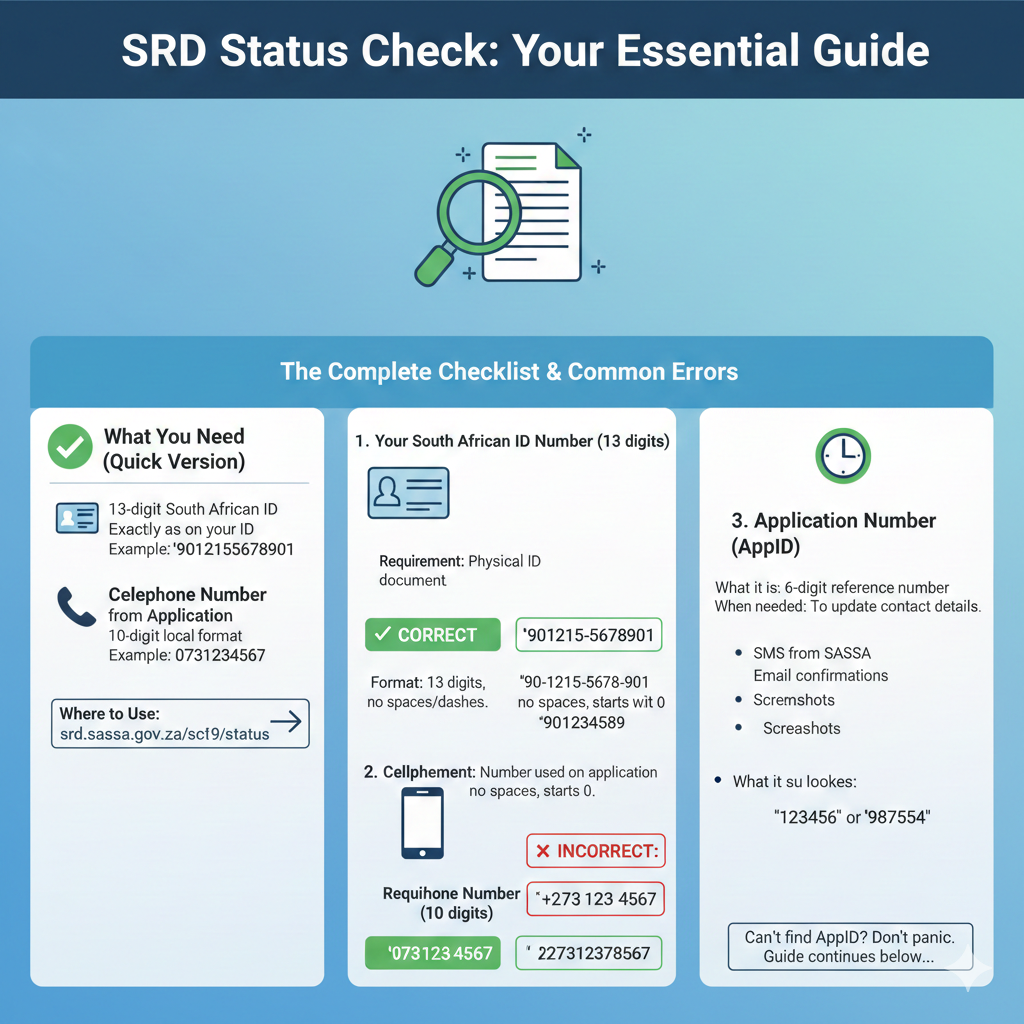
To check your SRD status, you need two pieces of information:
Your 13-digit South African ID number – This must be exactly as it appears on your ID document
The cellphone number you used to submit your SRD application – This must be the same number you originally applied with, entered in 10-digit format
Where to use them: Go to the official SRD status page at https://srd.sassa.gov.za/sc19/status, enter both pieces of information exactly as required, and submit.
That’s the basic answer. But if you want to avoid the frustrating errors most people run into, keep reading.
What You Need: The Complete Checklist
Before you even open the status check page, gather these items:
1. Your South African ID Number (13 digits)
What you need: Your actual ID document in front of you. Don’t try to remember the number or guess—get the physical card or document and read it directly.
Format required: All 13 digits with no spaces, no dashes, no extra characters. Just the numbers.
Example of correct format: 9012155678901 (this is what the system expects)
Example of incorrect format:
90-1215-5678-901(has dashes – won’t work)90 1215 5678 901(has spaces – won’t work)90121556789(missing digits – won’t work)
2. Cellphone Number Used on Your Application (10 digits)
What you need: The exact phone number you used when you first applied for SRD. Not your current number (if it changed), not a family member’s number—the specific number that was on your original application.
Format required: 10-digit local format with no spaces. This typically starts with 0.
Example of correct format: 0731234567
Example of incorrect format:
073 123 4567(has spaces – might not work)+27731234567(international format – system expects local)731234567(missing the leading 0 – won’t work)
3. If Your Number Changed: Application ID (AppID)
What this is: A 6-digit reference number that was issued when you applied or reapplied for SRD.
When you need it: If your phone number changed after you applied and you need to update your contact details, you’ll need your AppID to complete the update process.
Where to find it:
- SMS messages from SASSA about your application
- Email confirmations if you provided an email
- Any screenshots you took when you applied
- Confirmation messages from when you submitted or reapplied
What it looks like: A 6-digit number, something like 123456 or 987654
If you can’t find your AppID and your number has changed, don’t panic—we’ll cover what to do in the “Phone Number Changed” section below.
Use the Official SRD Status Check Page
The only legitimate place to check your SRD status online is the official SASSA portal. Let’s be very clear about this because scammers create fake sites that look identical.
Official SRD status check page: https://srd.sassa.gov.za/sc19/status
How it works: This page verifies your record by matching your ID number and phone number to the information that was submitted with your application. Think of it like a two-factor verification—both pieces must match exactly what’s in the system, or you won’t be able to access your status.
Why both are required:
The ID number identifies whose record we’re looking at. The phone number serves two purposes: it confirms you’re the person who applied (or authorized to check on their behalf), and it’s where verification PINs get sent for certain actions.
Step-by-step process:
- Navigate to the official page (type the URL carefully or use a trusted bookmark)
- Enter your 13-digit ID number in the ID field
- Enter your 10-digit phone number in the phone field
- Click Submit or Check Status
- Wait for the page to load (don’t click multiple times)
- View your status result
Need more detailed instructions? See our complete guide: How to Check SRD R370 Status Online (Step-by-step)
Input Requirements: ID + Phone Must Match Your Application
The system is strict about matching. It’s not being difficult for no reason—this security prevents unauthorized people from accessing your information and helps prevent fraud. But it does mean you need to get the details exactly right.
South African ID Number (13 digits)
What it is: Your 13-digit South African identity number issued by the Department of Home Affairs. This number is unique to you and appears on your green ID book or smart ID card.
Formatting rules:
- ✓ Correct:
9012155678901(13 consecutive digits, no spaces, no special characters) - ✗ Incorrect:
90-1215-5678-901(Contains dashes) - ✗ Incorrect:
90 1215 5678 901(Contains spaces) - ✗ Incorrect:
90121556789(Only 11 digits – missing numbers) - ✗ Incorrect:
90121556789010(14 digits – one too many)
Pro tips for entering your ID number:
- Read it directly from your ID document while typing
- Enter all 13 digits in one continuous string
- Double-check before submitting—one wrong digit and it won’t work
- If you keep getting errors, check if you’re accidentally transposing numbers (like entering 56 instead of 65)
Why it matters: The portal searches the SRD application database using your ID number as the primary identifier. If even one digit is wrong, the system can’t find your record and will give you an error or say no record exists.
Common ID number mistakes:
Mistake: Accidentally including your citizenship number or other numbers on your ID card that aren’t your ID number
Fix: Make sure you’re reading the right number from your ID. The ID number is specifically labeled and is always 13 digits.
Mistake: Mixing up similar-looking digits (like 0 and O, or 8 and 3)
Fix: Look very carefully at each digit. Type slowly and check each one as you go.
Mistake: Including spaces because that’s how it’s printed on some documents
Fix: Remove all spaces. The system wants one continuous 13-digit string.
Cellphone Number Used on the SRD Application (10 digits)
What it is: The mobile phone number you provided when you submitted your SRD application. This is crucial because many SRD processes send a PIN or verification code to this number.
Formatting rules:
- ✓ Correct:
0731234567(10 digits starting with 0, no spaces) - ✗ Incorrect:
073 123 4567(Contains spaces – may not work) - ✗ Incorrect:
+27731234567(International format – system expects local format) - ✗ Incorrect:
27731234567(Country code without + – wrong format) - ✗ Incorrect:
731234567(Missing leading 0 – only 9 digits)
Pro tips for entering your phone number:
- Use the exact same number you applied with, even if you’re no longer using it
- Enter all 10 digits with no spaces or special characters
- Don’t include the country code (+27)
- Make sure you’re entering YOUR number, not a friend or family member’s
- If you borrowed someone’s phone to apply, use that number
Why it matters: The phone number serves multiple purposes in the SRD system: Verification (it confirms you’re authorized to access this application’s information), PIN delivery (many SRD actions like appeals or banking updates send a PIN to this number), Communication (SASSA may send updates or requests for information to this number), and Security (it prevents unauthorized people from accessing your information).
What if you no longer have access to that phone number? This is a common problem and we have a whole section on it below. Short answer: you’ll need to use the official contact update process, which requires your Application ID (AppID).
Common phone number mistakes:
Mistake: Using your current number when you applied with a different one
Fix: Think back to when you applied. What number did you use? Check any old SRD messages or emails for clues.
Mistake: Adding spaces “for readability”
Fix: Remove all spaces. Enter as one continuous 10-digit string.
Mistake: Using international format because that’s what your phone shows
Fix: Convert to local format. If you have +27731234567, enter it as 0731234567.
Common Input Mistakes (And How to Fix Them)
Let’s walk through the most frequent errors people encounter and exactly how to solve them. These are real problems that frustrate thousands of people every day.
Mistake 1: Wrong Phone Number
What happens: You enter what you think is the right number, but the system says it doesn’t match or can’t find your record.
Why it fails: The phone number must match exactly what you used on your application. If you’ve changed numbers since then, or if you’re entering a different number (even by one digit), it won’t work.
How to fix it:
Option 1 – Use the original number: If you still have access to the phone number you applied with, even if you’re not using it anymore: Find that old SIM card, put it in a phone temporarily, and use that number to check your status.
Option 2 – Update your phone number officially: If you don’t have access to the old number at all: You’ll need to use the official contact update process. This requires your Application ID (AppID). See the “Phone Number Changed” section below for detailed instructions.
Option 3 – Try to remember or verify the old number: Check any old SMS messages from SASSA, look through your email for SRD confirmations, check with friends or family who might remember what number you used, or review your call logs or WhatsApp history from around when you applied.
What NOT to do:
- Don’t just keep trying different numbers hoping one works
- Don’t use someone else’s number
- Don’t create a new application with your new number (this creates confusion)
Mistake 2: ID Number Typed Incorrectly
What happens: You’re certain you entered the right number, but it keeps failing.
Why it fails: Even one wrong digit makes the ID number unrecognizable. It’s very easy to transpose numbers (like entering 56 instead of 65) or to misread similar-looking digits.
How to fix it:
- Get your actual ID document. Don’t try to remember the number. Physical document in hand.
- Clear the field completely. Don’t just fix one digit—start fresh.
- Type very slowly. Enter each digit one at a time while looking at your ID.
- Read it back out loud. After entering, read what you typed out loud while looking at your ID. Your ears might catch mistakes your eyes missed.
- Check for these specific problems: Did you enter 13 digits? Count them. Are there any spaces or dashes? Remove them. Did you accidentally hit the same number twice (like 55 instead of 5)? Did you transpose any numbers (like 67 instead of 76)?
- Try copying and pasting. If you have your ID number stored securely somewhere, copy it exactly and paste it into the field. Just make sure there are no hidden spaces before or after.
Pro tip: Have someone else check your typing. A fresh pair of eyes catches errors you’ve looked at too many times.
Mistake 3: PIN/OTP Not Coming Through
What happens: You submit your details successfully, and the system says it’s sending a PIN to your phone, but the message never arrives.
Why this happens: Several reasons: The phone is off or out of coverage, the number is wrong, network delays, your phone is blocking unknown numbers, or the system is experiencing high volume.
How to fix it:
Immediate checks (do these first): Verify the number you entered is active. Can that phone receive SMS? Test it by sending a message from another phone. Check your signal. Make sure you have network coverage. Move to a location with good signal if needed. Look in all your message folders. Check spam/junk folders, blocked messages, and any filtering apps you have. Wait a bit. Sometimes there’s a delay of 5-10 minutes. Don’t request another PIN immediately.
If PIN still doesn’t arrive: Retry after 15-30 minutes. Systems can be busy, especially early in the month. Make sure you haven’t blocked the sender. Check your phone’s blocked numbers list. Try requesting PIN again, but only ONCE more. Multiple rapid requests can trigger anti-spam systems. If it’s been hours with no PIN: You likely have a phone number mismatch issue. Double-check you’re using the exact number from your application.
When to escalate: If you’ve confirmed the number is correct, your phone definitely receives messages, you’ve waited reasonable time, and PINs still aren’t arriving after 24 hours, contact SASSA. There may be a system issue or you may need to update your contact details. See also: Not receiving PIN/OTP (fix guide) for more detailed troubleshooting.
If Your Phone Number Changed (Official Update Process)
Life happens. You lose your phone, you change networks, you stop using a number. If the phone number on your SRD application is no longer accessible to you, here’s what to do.
Use the SRD Contact Update Page
Don’t panic. There’s an official process for this exact situation.
Official URL for contact updates: https://srd.sassa.gov.za/sc19/contact
This is the legitimate SASSA page for updating your phone number and email address. Don’t use any other site.
What You’ll Be Asked For
When you access the contact update page, you’ll need to provide:
- Your 13-digit ID number (Same rules as always—no spaces, all 13 digits)
- Your 6-digit Application ID (AppID) – This is the reference number issued when you applied or reapplied
Why AppID is required: Since you can’t verify via your old phone number, the AppID serves as an alternative way to prove you’re the legitimate applicant.
The Verification Step You Should Expect
SASSA indicates that a verification PIN may be sent by SMS to verify the new number. Here’s how this typically works: You enter your ID and AppID, you provide your new phone number, the system sends a PIN to your NEW number, you enter the PIN to confirm you control the new number, and the update is processed.
Why this step matters: It proves you actually have access to the new number you’re registering. This prevents someone from fraudulently changing your contact details to their own number.
What you need for successful verification: Your new phone number must be active and able to receive SMS, you must have the phone with you to receive and enter the PIN, and the phone must have network coverage.
If You Don’t Have Your AppID
This is really common. A lot of people didn’t save their AppID or can’t find it. Here’s what to do:
Step 1: Search thoroughly first. Before giving up, check these places one more time: ✓ All SMS messages—search for “SASSA,” “SRD,” “AppID,” “Application ID”; ✓ Your email inbox and spam folder; ✓ Any screenshots on your phone or computer; ✓ Photos you might have taken of confirmation screens; ✓ Messages you sent to friends or family about your application.
Step 2: If you genuinely can’t find it. You have two options:
Option A: Contact SASSA via official channels. Call 0800 60 10 11 (SASSA call centre). Explain that you need to update your phone number but don’t have your AppID. They may be able to help you through an alternative verification process. Have your ID number ready and be prepared to answer security questions. Or Email GrantEnquiries@sassa.gov.za. Send a clear email explaining your situation. Include your full name, ID number, the old phone number (if you remember it), and why you need to update. Ask for guidance on updating without AppID. Be patient—email responses can take days.
Option B: Visit a SASSA office in person. If phone and email aren’t resolving it: Go to your nearest SASSA office, bring your ID document, and explain that you need to update contact details but don’t have your AppID. They can assist with alternative verification.
What NOT to do:
- Don’t guess or make up an AppID—wrong information makes things worse
- Don’t pay anyone claiming they can “help” you update without AppID
- Don’t just give up—there are solutions, they just take more effort
Related guides: Change SRD Phone Number (step-by-step), Not Receiving PIN/OTP (fix guide)
If Your Phone Was Changed Without Permission (Possible Fraud)
This is serious and needs immediate attention. If you suspect someone has changed your phone number without your permission, you may be a victim of fraud.
What This Warning Means
The SRD portal includes a security flow where users can report that their phone number was changed without their permission. This exists specifically because fraudsters sometimes try to hijack SRD applications by changing contact details to numbers they control.
How this fraud works:
- Scammer gets your ID number (sometimes from data leaks or social engineering)
- They attempt to update your contact details to their own number
- If successful, they receive all your PINs and can control your application
- They may change banking details to steal your payments
Red flags that this might have happened:
- You try to check status and it says your phone number is wrong, even though you haven’t changed it
- You stop receiving messages from SASSA suddenly
- You hear from someone else that your SRD details were accessed
- You see banking detail changes you didn’t make
What to Do If This Happened
Act immediately. Every hour matters.
Step 1: Secure your information. Don’t click any suspicious links in messages you receive. Change your banking passwords if you’ve shared any info online. Contact your bank if you suspect banking details were changed.
Step 2: Report through official channels only. Call SASSA immediately: 0800 60 10 11. Report that your phone number was changed without permission. Provide your ID number and explain what you discovered. Ask them to freeze any updates to your account. Get a reference number for your report. Email as well for documentation: GrantEnquiries@sassa.gov.za. Send a clear email with subject line: “URGENT: Unauthorized Phone Change – ID [your number]”. Explain what happened and when you discovered it. Request immediate action to secure your account.
Step 3: Use the official SRD portal reporting flow. If the portal has a specific option for “phone changed without permission,” use it: Go to official SRD pages only, follow the prompts to report unauthorized changes, provide all requested verification information, and screenshot everything for your records.
Step 4: Follow up persistently. Don’t assume one call or email fixed it. Follow up every 2-3 days until resolved. Keep detailed records of all communications. Consider visiting a SASSA office in person if phone/email aren’t resolving it.
Step 5: Report to police. This is fraud and it’s a crime. Consider opening a case: Go to your nearest police station, bring your ID and any evidence (screenshots, messages), explain that someone fraudulently changed your SRD details, and get a case number. This creates a legal record and may be useful for your SASSA report.
Prevention: Protect Yourself
How to avoid becoming a victim: ✓ Never share your ID number publicly or with untrusted people; ✓ Don’t click links in SMS/WhatsApp messages claiming to be from SASSA; ✓ Only use official SASSA sites (check the URL carefully); ✓ Never share PINs or OTPs with anyone; ✓ Check your status regularly so you notice changes quickly; ✓ Keep your AppID secure but accessible. See our complete safety guide: SRD Scams & Safety
Where Else You’ll Need ID + Phone (So You’re Not Surprised)
Your ID number and phone number aren’t just for checking status. Several other SRD processes use the exact same requirements. Knowing this ahead of time saves frustration later.
Appeals (ID + Phone + Send PIN)
If you were declined and want to appeal, you’ll use the SRD appeals portal. What it asks for: Your 13-digit ID number, the phone number used to submit your application, and you’ll then go through a “Send PIN” step where a verification code is sent to your phone. Why this matters: Make sure your phone number is active and can receive messages BEFORE starting an appeal. If you can’t receive the PIN, you can’t complete the appeal.
Process flow: Enter ID and phone number, click “Send PIN”, receive PIN via SMS, enter PIN to verify, and proceed with appeal submission. See our detailed guide: How to Appeal an SRD Decline
Cancellation (ID + Phone + Send PIN)
If you need to cancel your SRD application (for example, because you got a job), you’ll use the SRD cancellation page. What it asks for: 13-digit ID number, phone number used on application, and Send PIN step for verification. Same pattern as appeals: You must be able to receive the PIN on your registered phone number.
When you might need to cancel: You got employed, you started receiving UIF, you’re now receiving another social grant, or you no longer want to receive SRD for any reason. See our guide: Cancel SRD Application Safely
Banking Updates (SRD Banking Update Page)
If you need to change where your payments go, you’ll use the banking details update portal. What it asks for: Your ID number (to start the process), verification via your registered phone number (may include PIN), and new banking details. Important: You can’t update banking if you can’t verify via your registered phone. If your phone number changed, update that FIRST, then update banking. See our guide: Update SRD Banking Details
The pattern you should notice: Almost every SRD action follows the same verification flow: Enter ID number, enter or verify phone number, receive PIN via SMS, enter PIN to proceed, and complete the action. This is why having your correct, accessible phone number registered is so critical. If you can’t receive PINs, you’re locked out of most SRD processes.
Security Checklist (Avoid Fake Links and Impersonators)
Scammers know that people need to enter their ID and phone numbers to access SRD services. They create fake sites that look exactly like the real thing, then steal your information when you enter it.
Verify the Domain Before Entering Details
Before you type anything, check the website address very carefully.
Official domains you can trust: ✓ srd.sassa.gov.za – Official SRD portal; ✓ sassa.gov.za – Official SASSA main site.
Fake domains to watch out for: ✗ sassa.com; ✗ srd-check.co.za; ✗ sassagrants.org; ✗ check-srd.com; ✗ Anything that’s not .gov.za.
How to check if you’re on the real site: Look at the address bar at the top of your browser, read the full URL from left to right, confirm it ends in .gov.za – this is crucial, look for the padlock icon next to the URL (shows secure connection), and check for misspellings in the domain (scammers use tricks like “sassa” vs “sasa”).
Never click links from: SMS messages, WhatsApp messages, Emails you didn’t request, Social media posts, or Pop-up ads. Always type the URL yourself or use a bookmark you created by typing it yourself.
What Not to Share
Even on real official sites, there are things you should NEVER share with other people.
NEVER share your PIN or OTP with anyone: When official SASSA processes send a PIN to your phone, that PIN is for YOU to enter into the official website yourself. No SASSA representative will ever ask you to read this code to them.
How the scam works: You get a real PIN from SASSA (because scammer triggered it), scammer calls pretending to be SASSA, they ask you to “confirm the code that was just sent to you”, you tell them, and they use it immediately to access your account.
What to do instead: Only enter PINs directly into official websites yourself, never read them out loud to anyone, and if someone asks for your PIN, hang up immediately.
NEVER share: Banking login credentials (SASSA never needs these), Full banking details to unknown callers, Your AppID to random people (only use it on official portals), or Photos of your ID document to unofficial sites.
Safety rules: ✓ Only use official SASSA portals; ✓ Only enter PINs directly into websites yourself; ✓ Never send money or airtime to anyone; ✓ Don’t trust calls or messages asking for verification codes; ✓ When in doubt, end the conversation and contact SASSA yourself.
Official Contact Channels (When You’re Stuck)
If you’re having problems with ID or phone number verification, or if you need help with anything we’ve covered, these are the only official ways to contact SASSA.
SASSA Call Centre (Toll-free): 0800 60 10 11
- Free to call from most networks
- Can help with: status checks, technical problems, phone updates, general questions
- Best times to call: mid-morning (9-11am) or mid-afternoon (2-4pm)
- Have your ID number ready
SASSA Grants Email: GrantEnquiries@sassa.gov.za
- Use for: non-urgent issues, detailed explanations, documentation
- Include: your name, ID number, clear description of problem
- Responses can take several days
- Good for creating paper trail
WhatsApp Channel: 082 046 8553
- Save the number to your contacts
- Send a message to start
- Follow automated menu prompts
- Useful when website is slow
When to contact SASSA:
You’ve tried all troubleshooting steps and still can’t access your status, your phone number changed and you can’t find your AppID, you suspect fraud or unauthorized changes, you’ve been getting errors for several days, or you need clarification on any process.
What to have ready: Your 13-digit ID number, the phone number from your application (if you know it), your AppID (if you have it), clear description of the problem, what you’ve already tried, and any error messages or screenshots.
FAQs
Q: What do I need to check SRD status?
A: You need two things: your 13-digit South African ID number, and the 10-digit cellphone number you used when you submitted your SRD application. Both must be entered exactly as used on your application, with no spaces or special characters.
Q: Can I check SRD status with ID only?
A: No. SRD verification processes typically require both your ID number and the phone number used on your application. The phone number serves as additional verification and is where PINs get sent for various processes. You cannot check status with just your ID number.
Q: What if my phone number changed?
A: If your phone number changed after you applied, you’ll need to update it using the official SRD contact update page at https://srd.sassa.gov.za/sc19/contact. You’ll need your 13-digit ID number and your 6-digit Application ID (AppID). If you don’t have your AppID, contact SASSA directly for help.
Q: What is AppID and why do I need it for phone updates?
A: AppID is your 6-digit Application ID that was issued when you applied or reapplied for SRD. You need it for phone updates because it serves as verification when you can’t verify via your old phone number. It proves you’re the legitimate applicant. Check your SMS messages, emails, or application confirmation screens to find it.
Q: Why am I asked to “Send PIN”?
A: The “Send PIN” step is a security verification. The system sends a one-time PIN code to your registered phone number via SMS. You then enter this PIN to prove you have access to the phone number on file. This prevents unauthorized people from accessing your SRD information or making changes to your application.
Q: What if I don’t receive the PIN?
A: First, confirm your phone can receive SMS and has network coverage. Wait 15-30 minutes as there can be delays. Check your spam/blocked messages folders. If PINs still aren’t arriving after several hours, the issue is likely that the phone number doesn’t match your application, or you need to update your contact details. Contact SASSA for help if the problem persists.
Q: How do I appeal if declined?
A: Use the official appeals portal at https://srd.sassa.gov.za/appeals/appeal. You’ll need your ID number and registered phone number, and you’ll go through a Send PIN verification step. Appeals must be submitted within 90 days of the decline. See our detailed guide on how to appeal an SRD decline for complete instructions.
Q: How do I update banking details?
A: Use the official banking update page at https://srd.sassa.gov.za/sc19/banking-details-update. You’ll need to verify using your ID number and registered phone number. Make sure your phone number is current and accessible before attempting banking updates, as you’ll need to receive verification PINs. See our guide on updating SRD banking details for step-by-step help.
Final Thoughts
Getting your ID number and phone number right seems simple, but it’s the foundation of everything else in the SRD process. If these two pieces of information aren’t correct and accessible, you’re locked out of checking status, appealing decisions, updating details, and receiving payments.
The key takeaways: ✓ Always enter your ID number exactly as on your ID document—all 13 digits, no spaces; ✓ Use the phone number from your original application, not your current one if it changed; ✓ Keep your phone number active and accessible for receiving PINs; ✓ Save your AppID somewhere safe in case you need it later; ✓ Only use official SASSA domains—verify before entering any information; ✓ Never share PINs or OTPs with anyone; ✓ If your number changed, use the official update process; ✓ Contact SASSA when you’re genuinely stuck.
Bookmark this page for future reference, and share it with friends or family who are navigating the SRD system. Understanding these requirements saves hours of frustration.
You’ve got this.