How to Check SRD R370 Status Online (Step-by-Step)
Checking your SRD R370 status doesn’t have to be complicated. Whether you’re checking for the first time or you’ve done this before and hit a snag, this guide will walk you through everything you need to know—from the exact steps to take, to understanding what your results mean, to fixing problems when things don’t go as planned.
We’ve written this the way we’d explain it to someone sitting next to us, not like a government instruction manual. You’ll find real solutions here, not just vague advice.
The Fastest Way to Check
If you’re in a hurry and just need the basics, here’s the three-step process:
Open the official SRD status page at https://srd.sassa.gov.za/sc19/status
Enter your 13-digit ID number and the cellphone number you used when you applied
View your status result, which shows the period (month), your status, and payment information if applicable
That’s it in a nutshell. But if you want to really understand what you’re doing, what your results mean, and how to handle any problems that come up, keep reading.
What You Need Before You Start
Before you click anything or type anything, make sure you have these two pieces of information ready:
Your South African ID number (all 13 digits)
This needs to be exactly as it appears on your ID document. Don’t guess, don’t estimate—check your actual ID card or document and make sure you’re entering every digit correctly.
The cellphone number you used on your SRD application
This is critical. It must be the exact same number you gave when you first applied. If you used 073 123 4567 when you applied, you need to use that exact number now, not a different number you might have switched to later.
If your cellphone number has changed since you applied, you’ll need to update it first before you can check your status properly. We’ll cover how to do that later in this guide.
A quick safety note:
Only use official SASSA domains for checking your status. The real site is srd.sassa.gov.za. If you see any other domain that looks similar but isn’t quite right, close it immediately. Scammers create fake sites that look almost identical to steal your information. We’ll cover this more in the safety section below.
Use the Official SRD Status Check Page (The Most Reliable Method)
The official web portal is your best option for checking SRD status. It’s direct, it’s maintained by SASSA, and it gives you the most complete information.
The exact URL you should use:
We’re showing you the full link so you can type it yourself or bookmark it. Never click shortened links or links from text messages claiming to be from SASSA—always go directly to the site yourself.
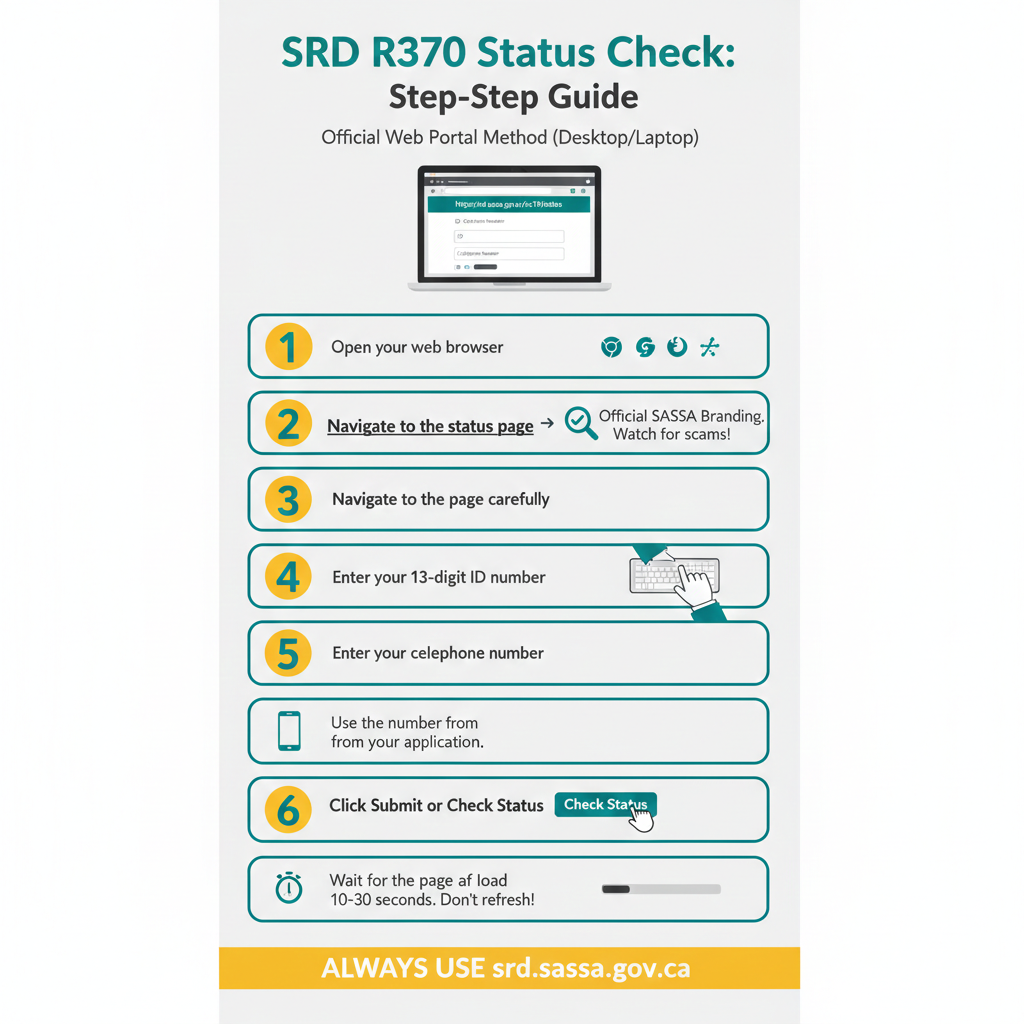
Step-by-Step on Desktop or Laptop
If you’re using a computer, here’s exactly what to do:
-
Step 1
Open your web browser — Chrome, Firefox, Edge, Safari—any modern browser works. We recommend Chrome or Firefox because they tend to handle the SASSA portal well, but use whatever you have access to.
-
Step 2
Navigate to the status page — Type this address exactly:
https://srd.sassa.gov.za/sc19/status. Take your time. Make sure every letter and symbol is correct. One wrong character and you might end up on a scam site. -
Step 3
Look at the page carefully — You should see a clean, official-looking page with the SASSA branding. If anything looks off—strange colors, spelling mistakes, requests for unusual information—close it and start over.
-
Step 4
Enter your 13-digit ID number — There will be a field asking for your ID number. Enter all 13 digits carefully. No spaces, no dashes, just the numbers.
-
Step 5
Enter your cellphone number — Use the same number you applied with. The system typically expects the number without spaces or special characters, but follow whatever format the form shows.
-
Step 6
Click Submit or Check Status — The button might say “Submit,” “Check Status,” or something similar. Click it once and wait.
-
Step 7
Wait for the page to load — Don’t click multiple times. Don’t refresh. Just wait. The system can take 10-30 seconds to process your request, especially during busy times.
Step-by-Step on Mobile Phone
The process on mobile is basically the same, but here are some practical tips that make it easier:
- Use Chrome or Safari as your browser: The built-in browsers on most Android and iPhone devices work best with government sites. Avoid using Facebook’s in-app browser or other third-party browsers if you’re having trouble.
- Switch between Wi-Fi and mobile data if one isn’t working: Sometimes Wi-Fi connections have issues with certain sites. If the page won’t load on Wi-Fi, turn it off and try mobile data. Or vice versa.
- Try private or incognito mode if the page behaves oddly: This isn’t always necessary, but if the page keeps showing old information or acting strange, open a private browsing window and try again. This clears any cached data that might be causing problems.
- On Chrome (Android/iPhone): Tap the three dots menu → New incognito tab
- On Safari (iPhone): Tap the tabs button → Private
- Make sure your phone screen doesn’t dim while you’re waiting: When you click submit, it can take a while to load. Keep the screen active so it doesn’t time out in the middle of processing.
- Zoom in if the text is too small: Use pinch-to-zoom to make the form fields bigger if you’re having trouble reading or entering information.
What You Should See After You Submit
Once you successfully submit your information, the results page will load. Here’s what to look for:
- The period or month the result applies to: This is important. Your status is shown for a specific period (usually a month). Make sure you’re looking at the period you care about. The system might show you the current period or the most recent period you applied for.
- Your status label: This will be one of several possibilities: Approved, Pending, Declined, or a verification-related message. Each one means something different, and we’ll break them all down in detail below.
- Payment information (when applicable): If you’re approved, you might see a “Pay Day” field or other payment-related information. This tells you when to expect payment or gives you details about the payment process. Not all approved statuses show this immediately, so don’t panic if it’s not there yet.
- Any verification or next step prompts: Sometimes the system will tell you that additional verification is needed or that you need to take a specific action. Read these messages carefully and follow whatever instructions are shown on screen.
A note about what we can and can’t tell you: The exact fields and layout of the results page can vary based on SASSA’s current system setup. We’re giving you the general structure based on what the official portal typically shows, but if you see something slightly different, that’s okay. The key information (period, status, payment details) should still be clearly visible.
What Your SRD Status Means (And What to Do Next)
Your status result isn’t just a label—it’s telling you where you stand in the process and what needs to happen next. Let’s break down each possibility so you know exactly what you’re looking at and what to do about it.
Status: Approved
What this means in plain language: Congratulations! Your application has been reviewed and accepted for the period shown. This means SASSA has verified your eligibility and you qualify for the SRD grant for that specific month.
What this does NOT automatically mean: Money is already in your account. Being approved is the first major step, but there are still processing steps between approval and actual payment hitting your account.
Your most important next action:
Check the Pay Day field or any payment information shown in your result. This might tell you when to expect payment or give you other payment-related details.
Your complete next-steps checklist:
- Look for payment information in your result. If there’s a specific pay day shown, make note of it. If not, don’t worry—it doesn’t mean there’s a problem, it might just mean payment details aren’t finalized yet.
- Confirm your banking details are correct. If you selected bank payment and your account details are wrong, the payment will fail. You can update banking details using the official process (we’ll cover this below).
- Make sure your contact details are current. Some payment-related steps might send a PIN or message to your registered phone number. If your number has changed, update it.
- Keep checking periodically. If you don’t see payment information yet, check back every few days. Once payment is processed, the information should appear.
- Don’t panic if payment seems slower than expected. Payment processing happens in batches and can take time. We have a whole section below on “Approved but No Payment” if you need more specific help.
Internal note: Having problems getting paid after approval? Jump to our “Approved but No Payment” section below for detailed troubleshooting steps.
Status: Pending
What this means in plain language: Your application is currently being reviewed for the period shown. Think of it like your application is in a queue—various checks and verifications are happening in the background before a final decision is made.
Why applications stay pending:
- Verification checks are still running (checking employment databases, income records, etc.)
- Your application is in the processing queue and hasn’t been fully reviewed yet
- There might be a detail that needs additional verification before approval or decline
- Processing volume is high and there’s a backlog
Your most important next action:
Wait and recheck periodically. The absolute worst thing you can do when pending is start making changes or submitting duplicate applications.
What NOT to do when you’re pending:
- Don’t submit a new application hoping it will speed things up—this creates confusion
- Don’t make random updates to your details unless you know something is actually wrong
- Don’t check constantly (multiple times per day doesn’t help and might slow the system)
- Don’t panic after just a few days—pending is completely normal for at least a week or two
Your complete pending strategy:
- Recheck weekly, not daily. Checking once a week is reasonable and lets you stay informed without overwhelming yourself or the system.
- Verify your details are entered correctly. Double-check that the ID number and phone number you’re using to check status match exactly what you used when you applied. Even one wrong digit can cause issues.
- Make sure your contact information is current. If your phone number or email changed after you applied, the system might be trying to reach you. Complete the official contact update process if needed.
- Review eligibility requirements. If your situation changed (you got a job, started receiving UIF, enrolled in NSFAS), this could affect your application. Be honest with yourself about whether you still qualify.
- Check if you missed any communication. Look through your text messages and see if SASSA sent any requests for information or action that you might have missed.
Status: Declined
What this means in plain language: Your application was reviewed and not approved for the period shown. This can be disappointing, but it’s not necessarily the end of the road.
Why applications get declined:
Your status result should include a reason. Common reasons include:
- Income above the means test threshold: Database checks show income over R624 per month
- Receiving another grant: You’re already getting a different SASSA grant
- Employed: Employment records show you have a job
- Receiving UIF: You’re getting or qualifying for unemployment insurance
- Receiving NSFAS: You’re getting a student funding stipend
- Verification mismatch: Something in the verification process didn’t match up
- Not meeting residency requirements: Status or documentation issues with residency/citizenship
Your most important next action:
Read the decline reason very carefully. Your next move depends entirely on whether the decline is correct or incorrect.
Decision tree: Is the decline correct or incorrect?
If the decline is CORRECT (you know you don’t actually meet the requirements): Accept it and move on. Don’t waste time appealing something that’s factually accurate. If your situation changes in the future and you become eligible, you can apply then.
If the decline is INCORRECT (you believe you do meet all requirements): You have grounds to appeal. Gather any information that supports your case. Make sure you’re within the appeal deadline (very important—we’ll cover this below). Use only the official appeals process.
Example scenarios to help you decide:
- Declined for “receiving income” but you haven’t worked in months? → Might be a database error → Appeal makes sense
- Declined for “receiving UIF” but you’re actually getting UIF? → The decline is correct → Appeal won’t help
- Declined for “employed” but you lost your job 3 months ago? → Possible database lag → Appeal and explain
- Declined for “receiving another grant” but you only get child support for your kid? → Might be a misunderstanding → Appeal and clarify
When to recheck: After a decline, rechecking the same status won’t change anything. If you appeal, you’ll check appeal status instead (different process, covered below).
When to escalate: If you believe the decline is wrong but you’re not sure whether to appeal or if you’re confused about the reason given, contact SASSA for clarification before the appeal deadline passes.
Internal note: Ready to appeal? Jump to our “How to Appeal” section below for the complete process and critical deadline information.
Status: Identity/Verification Issue
What this means in plain language: The system encountered a problem verifying something about your application. This is different from a decline—it’s not a “no,” it’s more like “we need to confirm something before we can decide.”
Common verification issues include ID number not matching Home Affairs records correctly, name spelling differences, residency status questions, banking information not matching ID details, or phone number verification problems.
Your most important next action:
Follow whatever instructions are shown on your results page. The system usually tells you what verification is needed.
General verification troubleshooting:
- Make absolutely sure you entered your ID number correctly. One wrong digit causes verification failures. Check your actual ID document and re-enter carefully.
- Verify your Home Affairs records are current. If there are issues with your ID document at Home Affairs (expired ID, pending updates, name changes not processed), this can cause verification problems.
- If your contact details changed, update them officially. The system might be trying to verify you using old phone numbers or email addresses.
- Don’t make random changes hoping to fix it. Only update information that you know is actually wrong.
- Use official support channels if problems persist. Contact SASSA and explain the specific verification issue you’re seeing. They can often identify what’s causing the mismatch.
A word of caution:
Be very careful with verification processes. Only use official SASSA portals and channels. Scammers often send fake “verification required” messages trying to steal your information. If you get a verification message, don’t click any links—go directly to the official portal yourself.
Other Status Labels You Might See
The statuses above (Approved, Pending, Declined, Verification) are the most common, but occasionally you might see other labels or messages. We can’t list every possible message because SASSA’s system can show various communications depending on your specific situation.
General rule: If you see a status label we haven’t covered here, read it carefully and follow any instructions provided. If it’s unclear, contact SASSA for clarification rather than guessing what it means.
How to Check Payment Status (Pay Day, Payment Delays, and “Approved but No Payment”)
Getting approved is great, but what you really want to know is: when will I actually get paid? Let’s break down everything about payment status, timing, and what to do when payment seems to be delayed.
Where to Find Your Pay Day / Payment Information
When you check your status and see “Approved” for a period, the same results page should include payment-related information.
What to look for:
- Pay Day field: This might show a specific date when payment is expected to be processed or deposited.
- Payment status information: Messages about whether payment has been processed, is pending, or requires action from you.
- Banking confirmation messages: Sometimes you’ll see notes about banking details being verified or needing confirmation.
Important context: Not every approved status immediately shows a pay day. Sometimes approval happens first, and payment details get added later as the payment is processed. If you’re approved but don’t see a pay day yet, this doesn’t automatically mean there’s a problem.
Understanding SRD Payment Timing (Reality vs Expectations)
Let’s be honest about payment timing because there’s a lot of confusion and misinformation out there.
What many people expect: A fixed monthly payment date, like other social grants have.
The reality: SRD payments don’t work that way. Here’s what actually happens:
- Payments are processed in batches: Not everyone approved on the same day gets paid on the same day. SASSA processes SRD payments in groups over time.
- Payment method affects timing: Bank deposits, cash send, and other payment methods have different processing speeds.
- Verification steps can delay payment: Even after approval, there might be background verification of banking details or other information before payment goes through.
- System processing takes time: There are multiple systems involved (SASSA’s system, banks, payment providers), and each adds processing time.
What this means for you: If you’re approved, payment could arrive anywhere from a few days to a few weeks later, depending on all these factors. It’s frustrating not to have an exact date, but understanding why helps manage expectations.
Approved But No Pay Day (Or Pay Day But Not Paid)
This is one of the most common frustrations people face. You’re approved, you can see it on the screen, but there’s either no payment information shown, or there’s a pay day shown but the money hasn’t arrived. Let’s work through this systematically.
Situation 1: Approved but no pay day information shown at all
What’s probably happening: Your approval is confirmed, but the payment processing hasn’t been scheduled yet. This often happens when approvals are processed in one batch and payment scheduling happens in a later batch.
Your action checklist:
- Recheck the status page every 2-3 days. Look for payment information to appear. Don’t check multiple times a day—give the system time to update.
- Confirm your banking details are correct. Go to the banking update portal (we’ll cover this below) and verify your account number, bank name, and all details are accurate.
- Make sure your contact details are current. If the system needs to send you a PIN for banking verification, it goes to your registered phone number. If your number has changed, update it.
- Give it at least 1-2 weeks. From approval to payment information appearing can take time. Try not to panic if it’s only been a few days.
- If 2-3 weeks pass with no payment information, contact SASSA. Call the call centre or send an email explaining you’re approved but no payment details are showing.
Situation 2: Pay day shown but money hasn’t arrived
What’s probably happening: The pay day shown is either the processing date (when SASSA releases payment) or an estimated date. There can be delays between SASSA releasing payment and it actually appearing in your account.
Your action checklist:
- Check your actual bank account or payment method. Don’t just assume it hasn’t arrived—actually log in and look. Sometimes payment arrives without notification.
- Give it a few extra days past the pay day. Bank processing, especially for large batches of payments, can take 2-3 business days after the pay day.
- Verify your banking details are correct. If your account number is wrong by even one digit, the payment will fail and need to be reprocessed.
- Check with your bank. Sometimes banks hold payments for verification or there are account issues. Call your bank and ask if any deposits are pending.
- If it’s been 5-7 days past the pay day with no payment, contact SASSA with specific information: you’re approved, pay day was [date], you’ve checked your bank, details are correct, but payment hasn’t arrived.
Situation 3: Approved multiple periods ago but never received any payment
This is more serious and needs attention. Most common causes: Banking details are incorrect or the account is closed; Phone number is wrong so you’re not receiving verification PINs; Your bank is rejecting the deposit for some reason; There’s a system issue or flag on your account.
Your urgent action plan:
- Update your banking details immediately using the official banking update portal. Choose an account you absolutely know is correct and active.
- Update your phone number if it changed, using the official contact update process.
- Contact SASSA right away. This has gone on too long to be normal processing delays. Call the call centre, explain how many periods you’ve been approved for without payment, and ask for specific help.
- Ask SASSA to check for payment rejections. Sometimes payments are sent but rejected by banks, and they need to be reprocessed.
- Consider visiting a SASSA office in person if phone and email aren’t resolving it. Bring your ID, any reference numbers, and evidence of your approvals.
Troubleshooting: Fix Problems Fast
Technology fails, systems glitch, and sometimes things just don’t work the way they should. This section is your practical guide to fixing the most common problems people encounter when checking SRD status. We’ve organized this by symptom, so you can jump straight to whatever problem you’re facing.
Problem: Status Page Not Loading / Blank Page
What you’re experiencing: You navigate to the official status check URL, but the page won’t load, shows a blank screen, or gets stuck loading forever.
Most likely causes: High traffic on the SASSA portal (especially early in the month), your internet connection is unstable, browser cache or cookies causing issues, or temporary technical problems on SASSA’s side.
Your fix sequence (2 minutes total):
- Refresh the page. Press F5 on desktop or pull down to refresh on mobile. Wait 10-15 seconds.
- Check your internet connection. Open another website (like Google) to confirm you’re actually online.
- Try a different browser. If you’re using Chrome, try Firefox or Edge. Sometimes one browser works better than others with government sites.
- Clear your browser cache. In most browsers: Settings → Privacy/History → Clear browsing data → Choose “Cached images and files” → Clear.
- Switch between Wi-Fi and mobile data. Turn off Wi-Fi and use mobile data, or vice versa.
If those don’t work:
- Try during off-peak hours. Early morning (6-8am), lunch time (12-2pm), and early evening (5-7pm) are busiest. Try mid-morning (9-11am) or mid-afternoon (2-4pm) instead.
- Use private/incognito mode. This loads the page fresh without any cached data.
- Try from a different device. If possible, try from a computer instead of phone, or vice versa.
When to escalate: If you’ve tried all these steps over 2-3 days and the page still won’t load, use an alternative channel. Try the WhatsApp option or call the SASSA call centre to check your status over the phone.
Problem: Form Won’t Submit / Times Out
What you’re experiencing: The page loads fine, you enter your ID and phone number, but when you click submit, nothing happens, you get an error, or the page times out.
Most likely causes: Server overload during busy times, special characters or spacing in your input, form validation failing, or connection timing out during processing.
Your fix sequence:
- Make sure you’re entering information correctly:
- ID number: exactly 13 digits, no spaces, no dashes
- Phone number: usually 10 digits, no spaces (like 0731234567)
- Try removing any spaces or special characters
- Click submit only once and wait. Don’t click multiple times. Wait up to 60 seconds for the page to respond.
- Try during a different time of day. Peak hours cause server slowdowns.
- Use a wired connection if possible (on desktop). Wi-Fi and mobile connections can time out more easily.
- Check if your device’s date and time are correct. Some forms fail if your system time is way off.
When to escalate: If the form consistently won’t submit over multiple days and you’ve tried different times and devices, contact SASSA via WhatsApp or phone to check your status through an alternative method.
Problem: “Details Don’t Match” (ID/Phone Mismatch Error)
What you’re experiencing: You submit your information and get an error saying your details don’t match, can’t be verified, or aren’t found in the system.
Most likely causes: Typo in your ID number or phone number, using a different phone number than you applied with, your phone number was updated but the update hasn’t processed yet, or your application hasn’t been captured in the system yet.
Your fix sequence:
- Triple-check your ID number. Get your actual ID document out and verify every single digit. It’s very easy to transpose numbers.
- Confirm the phone number. Think back to when you applied. What number did you use? Check old messages from SASSA to confirm.
- Try with a leading zero and without. Some forms want 0731234567, others want just 731234567. Try both formats.
- Make sure you’re using the number from your application, not your current number. If your number changed after applying, the old number is what the system recognizes until you update it.
- If you recently updated your details, wait 48-72 hours for the update to process across systems, then try again.
When to escalate: If you’re absolutely certain your details are correct and it’s still not working after 2-3 days, contact SASSA. There might be a data entry error from when your application was captured, or you might need to update your details officially.
Problem: Not Receiving OTP/PIN
What you’re experiencing: The system says it’s sending a PIN or OTP to your phone for verification, but you’re not receiving any message.
Most likely causes: Wrong phone number entered, phone number registered but not active, network delays or coverage issues, phone blocking unknown numbers, or too many PIN requests causing a temporary block.
Your fix sequence:
- Confirm the phone number you entered is correct. Check it character by character.
- Make sure your phone can receive SMS. Have someone send you a test text message from a normal number.
- Check your signal strength. Move to an area with good network coverage.
- Look in your blocked/spam messages folder. Some phones automatically filter messages from unknown numbers.
- Wait 15-30 minutes and try requesting the PIN again. Network delays are real.
- Don’t request the PIN over and over rapidly. This can trigger anti-spam systems that temporarily block you.
- Try using a different phone number if you have access to one (like a family member’s number that you’ve registered).
When to escalate: If you’ve waited several hours, your phone definitely receives messages from other sources, and PINs still aren’t arriving, you may need to update your contact details using the official contact update process. If that’s not possible, contact SASSA directly.
Problem: Pending for Weeks
What you’re experiencing: Your status has shown “Pending” for many weeks without changing.
Most likely causes: Normal processing backlog (frustrating but common), verification check encountered an issue and is stalled, missing information or action required but you weren’t notified, or your situation changed and the system is trying to verify the change.
Your fix sequence:
- Define “how long is too long.” 2-3 weeks pending is still within normal range. 6-8+ weeks is getting concerning.
- Review all the eligibility requirements. Make absolutely sure you still qualify. If your situation changed, that might be causing the delay.
- Check your messages. Look through all your SMS and emails for any communication from SASSA you might have missed.
- Verify your contact details are current. If they’re trying to reach you at an old number, you’d never know.
- Don’t make changes just to “do something.” Only update details if you know something is actually wrong.
When to escalate: If you’ve been pending for 6+ weeks, your details are all correct, you haven’t missed any communications, and you still qualify, it’s reasonable to contact SASSA and ask if there’s a specific issue holding up your application.
Problem: Approved But Payment Issue
We covered this extensively in the payment section above, but here’s the quick reference:
If approved with no payment information: Recheck every 2-3 days, verify banking details, wait 1-2 weeks, contact SASSA if 3+ weeks pass.
If pay day shown but no payment received: Actually check your bank account, wait 2-3 days past pay day, verify banking details are correct, contact bank to ask about pending deposits, contact SASSA if 5-7 days past pay day with no payment.
If approved for multiple periods but never received any payment: Update banking details immediately, update contact details if changed, contact SASSA urgently, and consider visiting a SASSA office in person.
Problem: Suspected Fraud / Suspicious Messages
What you’re experiencing: You received a text message, WhatsApp, or email claiming to be from SASSA, but something feels off.
How to identify scams (RED FLAGS):
- Asking you to pay any fee for any reason
- Requesting your PIN or OTP
- Pressuring you to act immediately or “lose your payment”
- Links that don’t go to official sassa.gov.za or srd.sassa.gov.za domains
- Asking for your banking login details
- Offering to “guarantee approval” for a fee
Your action plan:
- Don’t click any links in suspicious messages.
- Don’t share any PINs, passwords, or banking details.
- Don’t send money or airtime to anyone.
- Go directly to the official portal yourself to check your real status.
- If you already clicked a link: Close it immediately, clear your browser cache, change your banking passwords if you entered any information.
- If you shared information with a scammer: Update your banking details to a different account immediately, contact your bank’s fraud department, report to SASSA, and report to the police.
When to escalate: If you’re a victim of fraud, act immediately. Contact your bank first (to protect your money), then SASSA (to protect your grant), then police (to report the crime).
Update Your Details (Banking + Phone) — Official Links
Sometimes you need to update your information—maybe you changed bank accounts, got a new phone number, or realized the details on file are wrong. Here’s how to do it safely and officially.
Update Banking Details (If You’re Approved and Need to Change Payout Info)
When you need to do this: You got approved but realize your bank account number is wrong, your account was closed, you want to change payment methods, or payment keeps failing.
The official banking update URL:
Step-by-step process:
- Navigate to the official banking update page. Type the URL carefully or bookmark it for future use.
- Enter your ID number (all 13 digits).
- Enter your registered phone number (the number currently on your application).
- Follow the prompts. The system will guide you through the update process.
- Enter your new banking details very carefully (Bank name, Account number, Account type).
- Complete any verification steps. You might receive a PIN to your phone, or the system might verify electronically with your bank.
- Take a screenshot or write down any confirmation message. Keep this as proof of your update.
Important things to know:
- The account must be in your name. You can’t use someone else’s bank account.
- Make absolutely sure the account number is correct. One wrong digit means your payment goes nowhere.
- Updates take 48-72 hours to process before reflecting in payment processing.
Common mistakes to avoid:
- ❌ Entering someone else’s account (won’t work—must match your ID)
- ❌ Rushing and making typos in the account number
- ❌ Using a phone number you no longer have access to
- ❌ Trying to update repeatedly if it doesn’t work immediately
- ❌ Using unofficial third-party sites or services
Update Cellphone/Email (If Your Contact Details Changed)
When you need to do this: You got a new phone number after applying, you lost access to your old number, or your email address changed.
The official contact update URL: https://srd.sassa.gov.za/sc19/contact
What you’ll need: Your 13-digit ID number and your 6-digit Application ID (AppID).
Finding your Application ID:
Your AppID was issued when you applied. Check these places: ✓ SMS messages from SASSA (search “AppID”), ✓ Any emails you received, ✓ Screenshots you took, ✓ Any confirmation screens. If you really can’t find it, contact SASSA call centre or visit an office in person.
Step-by-step update process:
- Go to the official contact update page. Use the URL above.
- Enter your 13-digit ID number.
- Enter your 6-digit AppID.
- Follow the prompts to update your new cellphone number and email address (if needed).
- Double-check your new number before submitting. If it’s wrong, you’ll have the same problem again.
- Complete any verification steps. The system might send messages to both your old and new numbers.
- Keep proof of the update. Screenshot confirmation messages.
How long before the update takes effect: Contact updates usually process within 48-72 hours. Wait 2-3 days before trying to use the new number for status checks. Keep the old number active for a week if possible.
How to Appeal a Declined SRD Decision (Fast Path)
If you were declined and believe the decision was wrong, you have the right to appeal. But timing is critical, and the process is specific. Let’s walk through exactly how to do this.
Where to Appeal / Check Appeal Status
The official SRD appeals portal: https://srd.sassa.gov.za/appeals/appeal
This is the ONLY official place to lodge SRD appeals online. Don’t use third-party sites, don’t pay anyone to appeal, and don’t trust services claiming guaranteed success.
On the portal, you can lodge a new appeal, check existing appeal status, or view appeal outcomes and decisions.
The Critical Appeal Deadline Rule
According to official SASSA SRD appeals guidance, you may appeal within 30 days, but not exceeding 90 days after the decision.
- The 30-day recommendation: You should try to appeal within 30 days of being declined for the recommended timeframe.
- The 90-day hard deadline: You absolutely cannot appeal after 90 days. Miss this and your options become extremely limited or impossible.
Start counting from the date of the decision (the date you were declined, shown in your result).
Step-by-Step Appeal Process
- Step 1: Make sure you’re within the deadline. Check when you were declined and count the days. If approaching 90 days, this is urgent.
- Step 2: Understand why you were declined. Go back to your original status check and read the reason carefully. Your appeal must address this specific reason.
- Step 3: Assess if appeal makes sense. Is the decline actually wrong?
- Likely success: Database error (shows income you don’t have), grant mismatch, technical verification failure, or you meet all requirements but were declined.
- Unlikely success: You were actually employed, receiving UIF, or didn’t meet the income threshold.
- Step 4: Go to the appeals portal. Navigate to
https://srd.sassa.gov.za/appeals/appeal. - Step 5: Enter your details. Your 13-digit ID number and original registered cellphone number.
- Step 6: Select “Lodge an appeal”. Choose the option for submitting a new appeal.
- Step 7: Select the period you’re appealing. Select the specific month/period you want to appeal.
- Step 8: Explain why the decline was wrong. Be clear and specific.
Good: “I was declined for income, but I have not worked since [date]. This may be a database error from my previous employer.”
Poor: “This is unfair,” or “I really need the money.”
- Step 9: Submit and save your reference number. Write it down somewhere safe. You’ll need it to check status.
- Step 10: Wait for processing. Appeals take time to process, often several weeks or even months.
How to Check Your Appeal Status
Go to the appeals portal, enter ID/Phone, and select “Check appeal status”. Statuses include: Pending, Under Review, Approved/Upheld (successful, payment starts), or Rejected/Dismissed (original decline stands).
Check every 1-2 weeks. If rejected, the original decline stands and you can’t appeal again for that period. Your only option is to contact SASSA for a detailed explanation.
Alternative Official Channels (If the Website Is Down)
The online portal is usually the best option, but not the only one. SASSA provides several official channels for support.
WhatsApp (Official SRD Support Channel)
SASSA partnered with GovChat for WhatsApp support. The official number is: 082 046 8553.
How to use it: Save the number, send a message (like “Status”), and follow the automated menu prompts. It’s an official channel and mostly automated. Use it when the main site won’t load or if you prefer a chat interface.
USSD/SMS Access Channel
USSD functionality (short codes like *120…#) works without internet/data and is useful for basic phones. USSD codes can change, so always verify the current official code through SASSA’s announcements, social media, or call centre before using them. Be cautious of codes on random websites.
Call Centre Support
Official toll-free number: 0800 60 10 11. It’s toll-free and won’t use airtime, though hold times can be long. Call during mid-morning or mid-afternoon off-peak hours. Have your ID, phone number, and any reference numbers ready. Be patient and write down the name of the rep and any guidance given.
Email Support
Official grants enquiries email: GrantEnquiries@sassa.gov.za. Use this for documentation or complex non-urgent issues.
Example Email Template:
Scam Safety (Protect Yourself and Your Grant)
Scammers target SRD recipients constantly. Let’s make sure you don’t become a victim.
Confirm You’re on the Real Site: The only official domains are srd.sassa.gov.za and sassa.gov.za. Avoid .com, .co.za (unless it’s the official GovChat), or anything with extra words. Check the address bar for .gov.za and the lock icon.
What NEVER to Share:
- Your PIN or OTP (One-Time Password): Real SASSA reps will never ask for these. Scammers trigger the process and then call you to “verify identity” by asking for the code. Only enter codes into official sites yourself.
- Your banking login credentials: SASSA never needs your username, password, or bank PIN. They only need your account number for payment.
- Your full details to random callers: Only provide info via official portals, not to people who call you.
- Money or airtime: SASSA never charges fees for applications, checks, or appeals. If someone asks for payment, it’s a scam.
Common SRD Scam Tactics to Watch For:
Scam 1: “Confirm your details to receive payment”
SMS saying payment is ready with a fake link to “confirm” banking details to steal info.
Scam 2: “Pay a small fee to release your payment”
Someone claiming an “admin” or “verification” fee is needed to get your grant.
Scam 3: “We can guarantee your approval”
Someone offering “help” for a fee on social media. No one can guarantee approval.
Scam 4: “Send me your OTP to verify”
Callers pretending to be SASSA asking for the OTP just sent to your phone to access your account.
Scam 5: “SASSA representative” offering personal help
WhatsApp calls from people claiming to be reps offering help for a fee.
Scam 6: “Update your details urgently or lose your grant”
Fake urgency to make you panic and click a malicious link. Check official portals yourself instead.
What to Do If You’ve Been Scammed:
- Change banking details immediately: Use the official update portal to change to a different account that is secure.
- Contact your bank: Tell them you suspect fraud and ask to monitor or freeze the account temporarily. Change all banking passwords.
- Report to SASSA: Call 0800 60 10 11 and ask them to flag your account for monitoring. Get a reference number.
- Report to the police: Open a case of fraud and get a case number. Bring evidence like screenshots.
- Update contact details: If the scammer has your number, update it officially to prevent them intercepting future PINs.
- Close fake sites: If you clicked a link, close it, clear browser history, and run a malware scan.
- Monitor accounts: Check your bank account and SRD status daily for unauthorized transactions or changes.
Don’t feel embarrassed: Scammers are sophisticated and professional. What matters is that you act quickly to minimize damage and report it to warn others.
FAQs
Q: How do I check my SRD R370 status online?
A: Go to https://srd.sassa.gov.za/sc19/status, enter your 13-digit ID number and the cellphone number you used on your application, then submit. Your status will show for the current or most recent period.
Q: What details do I need to check SRD status?
A: You need two things: your 13-digit South African ID number, and the cellphone number you used when you applied for SRD. Both must be entered exactly as used on your application.
Q: What does “Approved” mean and where do I see pay day?
A: “Approved” means your application was accepted for that period. Payment information, including pay day if available, should appear in the same results screen. If you don’t see it immediately, check back in a few days as payment processing happens separately from approval.
Q: Why is my SRD status pending?
A: Pending means your application is still being reviewed. Various verification checks are running in the background. This is normal and can take anywhere from a few days to several weeks. Check weekly and make sure all your details are correct.
Q: What do I do if my SRD status is declined?
A: First, read the decline reason shown in your result. If the decline is factually correct (you don’t actually qualify), accept it. If you believe it’s incorrect (database error, verification mistake), you can appeal using the official appeals portal within 90 days of the decision.
Q: How do I appeal and where do I submit it?
A: Use the official SRD appeals portal at https://srd.sassa.gov.za/appeals/appeal. Enter your ID and phone number, select the period you’re appealing, explain why the decline was incorrect, and submit. Remember the deadline: within 30 days is recommended, but absolutely no later than 90 days after the decline.
Q: Approved but no payment—what now?
A: First, check that your banking details are correct using the banking update portal. Then verify your phone number is active and correct. If both are fine, wait 1-2 weeks for payment processing. If 2-3 weeks pass with no payment or payment information, contact SASSA directly for help.
Q: How do I update banking details?
A: Go to https://srd.sassa.gov.za/sc19/banking-details-update, enter your ID number and registered phone number, then follow the prompts to enter your new banking information. Triple-check the account number is correct before submitting.
Q: How do I update my phone/email?
A: Use the contact update portal at https://srd.sassa.gov.za/sc19/contact. You’ll need your 13-digit ID number and your 6-digit Application ID (AppID). If you don’t have your AppID, contact SASSA for assistance.
Q: What is the official SASSA contact number and email?
A: The official SASSA call centre number is 0800 60 10 11 (toll-free). The official grants enquiries email is GrantEnquiries@sassa.gov.za. Only use these official contacts, not numbers from random SMS messages.
Q: Can I check status on WhatsApp?
A: Yes. SASSA has an official WhatsApp channel at 082 046 8553. Save the number, open a chat, and follow the automated menu prompts. This is useful when the website is slow or you prefer a chat interface.
Q: What if the status website won’t load?
A: Try basic troubleshooting first: refresh, try a different browser, switch between Wi-Fi and mobile data, clear your cache. If it still doesn’t work, try during off-peak hours (mid-morning or mid-afternoon), or use alternative channels like WhatsApp or the call centre.
Final Thoughts
Checking your SRD status shouldn’t be this complicated, but the reality is that government systems can be frustrating, confusing, and sometimes unreliable. If you’ve made it through this entire guide, you now know more about the SRD process than most people—including exactly what to do when things go wrong.
Remember these key points: ✓ Only use official channels, ✓ Be patient with processing times, ✓ Never share PINs or pay fees, ✓ Keep checking regularly but not obsessively, ✓ Use the troubleshooting sections when stuck, ✓ Contact SASSA when you’re truly stuck. You’re not alone. Millions of South Africans are navigating this same process.
Bookmark this page so you can come back to it whenever you need help. Share it with friends and family. And most importantly: if you genuinely qualify for SRD and need that support, don’t give up. Keep trying, keep following up, and use the official channels available to you. You have rights as a beneficiary, and persistence pays off.
Good luck with your SRD journey. You’ve got this.