SRD Status Check Not Working: Fixes That Actually Work (2026)
When your SRD status check fails, it’s frustrating—especially when you need to know if your application was approved. This guide walks you through proven fixes for every common SRD status check problem, from website loading errors to verification failures. Every solution is backed by official sources and tested troubleshooting steps.
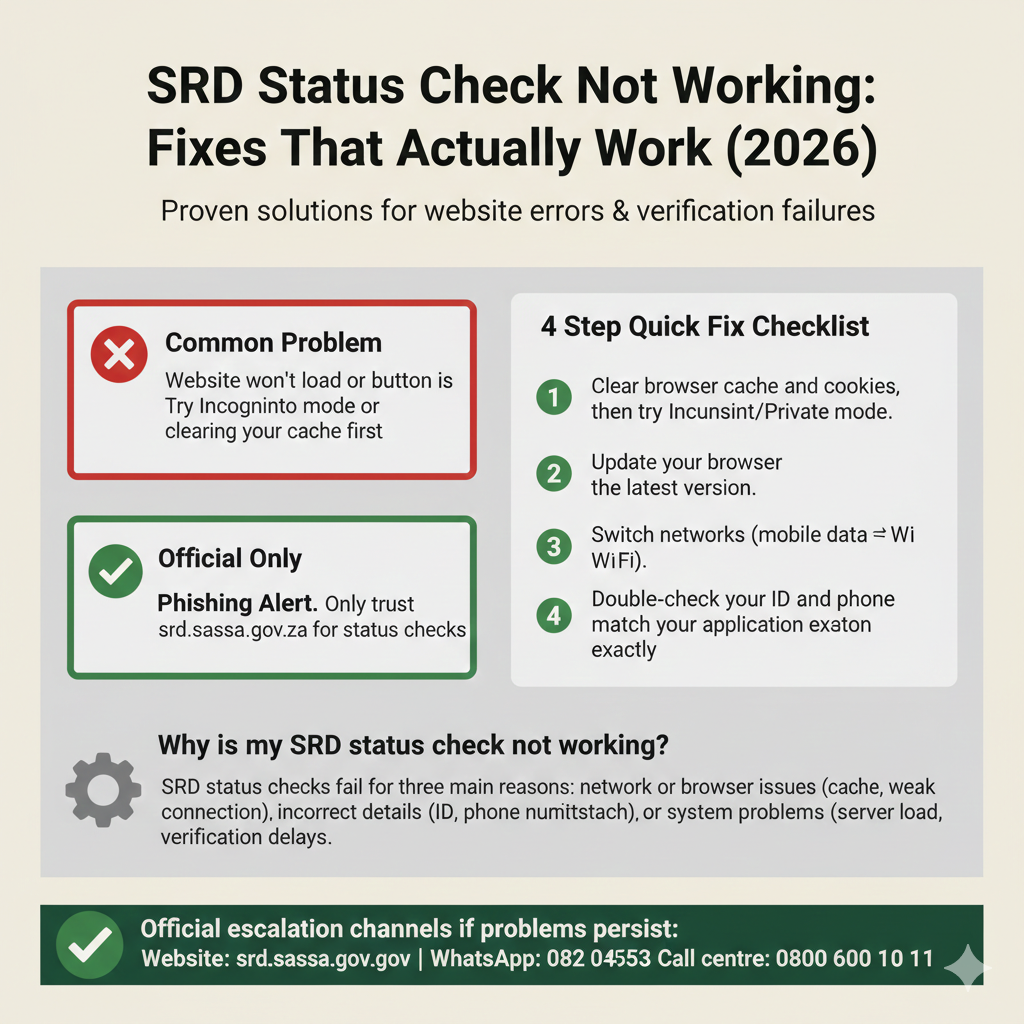
Common Problem
Website won’t load or button is stuck?
Try Incognito mode or clearing your cache first.
Official Only
Phishing Alert
Only trust srd.sassa.gov.za for status checks.
Why is my SRD status check not working?
SRD status checks fail for three main reasons: network or browser issues (cache, outdated browser, weak connection), incorrect details (ID or phone number mismatch), or system problems (SASSA server load, verification delays).
4-step quick fix checklist:
-
1
Clear browser cache and cookies, then try Incognito/Private mode.
-
2
Update your browser to the latest version.
-
3
Switch networks (mobile data ↔ Wi-Fi).
-
4
Double-check your ID and phone number match your application exactly.
Official escalation channels if problems persist:
Before You Retry (Avoid Scams)
Before you try any fix, protect yourself from scams. Fake websites, phishing links, and fraudulent “helpers” are common when people search for SRD troubleshooting advice.
Only use these official domains:
- srd.sassa.gov.za – Official SRD status check website
- sassa.gov.za – Official SASSA website
If a website doesn’t end in these domains, do not enter your personal information. Close it immediately.
Never share these with anyone:
- OTP (One-Time Password) – SASSA sends OTPs to your phone for verification. You enter them on the official portal yourself. SASSA will never ask you to share your OTP via WhatsApp, SMS, or phone call.
- PIN – If you have a SASSA PIN for other grant services, never share it with anyone.
- Banking details – Your bank account number, card details, or CVV should never be shared via chat, email, or unofficial websites.
Red flags that indicate a scam:
- “Pay to fix your status check” – SASSA services are free. Anyone asking for payment to “unlock” your status or “fix” your account is a scammer.
- Non-official links – Links that don’t go to srd.sassa.gov.za or sassa.gov.za are likely phishing attempts.
- Fake WhatsApp numbers – The only official SASSA WhatsApp number for SRD is 082 046 8553. Do not trust any other number.
If you encounter a scam: Stop immediately. Do not share any information. Block the number or close the page. Report it to SASSA at 0800 60 10 11 or email grantenquiries@sassa.gov.za.
2-Minute Quick Fix Checklist
Before you dive into detailed troubleshooting, try these four fast fixes. They solve most SRD status check problems in under two minutes.
Clear Cache and Cookies
What it does: Your browser stores temporary files (cache) and site data (cookies) to load websites faster. Sometimes this stored data gets corrupted or outdated, causing the SRD website to load incorrectly or not submit your status check.
How to do it:
- Chrome (Android/Desktop): Open Chrome, tap/click the three dots, go to Settings > Privacy and security > Clear browsing data. Select “Cached images and files” and “Cookies and other site data,” then click “Clear data.”
- Safari (iPhone/Mac): Go to Settings > Safari > Clear History and Website Data (iPhone) or Safari > Preferences > Privacy > Manage Website Data > Remove All (Mac).
- Edge (Desktop): Click the three dots, go to Settings > Privacy, search > Clear browsing data. Select cache and cookies, then clear.
After clearing, restart your browser and try checking your status again.
Try Incognito/Private Mode
What it does: Incognito or Private mode opens a fresh browser session that ignores saved cache, cookies, and extensions. This helps isolate whether the problem is caused by your browser’s stored data.
How to do it:
- Chrome: Tap/click the three dots, select “New Incognito tab” (mobile) or “New Incognito window” (desktop).
- Safari: Tap the tabs icon, then tap “Private” to open a new private tab (iPhone) or go to File > New Private Window (Mac).
- Edge: Click the three dots, select “New InPrivate window.”
Go to srd.sassa.gov.za in the Incognito/Private window and try your status check again.
Update Your Browser
What it does: Outdated browsers lack the latest security updates and compatibility fixes. The SRD website may not work properly on old browser versions.
How to do it:
- Chrome: Go to Google Play Store (Android) or App Store (iPhone), search for “Chrome,” and tap “Update” if available. On desktop, click the three dots, go to Help > About Google Chrome, and it will update automatically.
- Safari: Safari updates automatically when you update iOS (iPhone) or macOS (Mac). Go to Settings > General > Software Update (iPhone) or Apple menu > System Settings > General > Software Update (Mac).
- Edge: Click the three dots, go to Help and feedback > About Microsoft Edge, and it will update automatically.
After updating, restart your browser and retry.
Check Device Date and Time Set Automatically
What it does: If your device’s date and time are incorrect, it can cause SSL certificate errors and prevent secure websites (like srd.sassa.gov.za) from loading.
How to do it:
- Android: Go to Settings > System > Date & time, ensure “Automatic date & time” is on.
- iPhone: Go to Settings > General > Date & Time, ensure “Set Automatically” is on.
- Windows: Right-click the clock, select “Adjust date/time,” ensure “Set time automatically” is on.
- Mac: Go to Apple menu > System Settings > General > Date & Time, ensure “Set time and date automatically” is on.
After fixing the date and time, restart your browser and retry.
Fix 1: SRD Website Not Loading / Blank / Button Not Working
If the SRD website doesn’t load, displays a blank page, or the “Check Status” button does nothing, follow these device-specific fixes.
Mobile Fixes (Android / iPhone)
Switch Wi-Fi ↔ Mobile Data
Why this works: Network restrictions, weak Wi-Fi signals, or carrier issues can prevent the SRD website from loading. Switching networks helps you rule out network problems.
How to do it: If you’re on Wi-Fi, turn it off and switch to mobile data. If you’re on mobile data, connect to a stable Wi-Fi network. After switching, close your browser completely, reopen it, and go to srd.sassa.gov.za again.
Chrome: Clear Cache/Cookies + Incognito (Android)
- Open Chrome, tap the three dots, go to Settings > Privacy and security > Clear browsing data.
- Select “Cached images and files” and “Cookies and other site data,” then tap “Clear data.”
- After clearing, tap the three dots again and select “New Incognito tab.”
- Go to srd.sassa.gov.za in the Incognito tab and retry.
Safari: Clear History/Website Data + Private Mode (iPhone)
- Go to Settings > Safari > Clear History and Website Data.
- Open Safari, tap the tabs icon, then tap “Private” to open a new private tab.
- Go to srd.sassa.gov.za in the private tab and retry.
Desktop Fixes (Chrome / Edge)
Disable Extensions/Adblock
Why this works: Browser extensions like adblock, script blockers, or privacy tools can prevent the SRD website from loading or submitting forms correctly.
How to do it: In Chrome or Edge, click the three dots and navigate to Extensions. Toggle off all extensions (especially adblock and script blockers). Refresh the SRD website and retry. Alternatively, use Incognito/InPrivate mode, which automatically disables most extensions.
Clear Cache/Cookies & Incognito
Follow the standard steps to clear data (Settings > Privacy > Clear Browsing Data) and open a new Incognito (Chrome) or InPrivate (Edge) window to retry checking your status.
When to Escalate
If the website still doesn’t load after trying all the fixes above, the problem might be on SASSA’s end (server downtime or maintenance). Switch to these official channels:
- WhatsApp: Message your ID number to 082 046 8553 to check your status.
- Call centre: Call 0800 60 10 11 to speak to a representative who can check your status for you.
Fix 2: OTP/PIN Not Received
Some SRD processes (like updating banking details or verifying identity) require an OTP (One-Time Password) sent to your phone via SMS. If you don’t receive the OTP, follow these steps.
Check Signal
Why this works: Weak cellular signal can delay or block SMS delivery. Make sure you have at least 2-3 bars of signal. If your signal is weak, move to a location with better coverage (outside, near a window, or higher floor) and request the OTP again.
Confirm the Number Matches the Application
Why this works: The OTP is sent to the phone number you used when you applied for SRD. If you’re using a different phone or SIM card, you won’t receive the OTP. Check that you’re using the same phone number you registered with. If your number changed, you need to update it via the official contact update page: srd.sassa.gov.za/sc19/contact.
Retry Later
Why this works: SMS delays can occur due to network congestion or carrier issues, especially during high-traffic periods. Wait 30 minutes to an hour, then request the OTP again. Do not request it multiple times in quick succession, as this can cause further delays.
Escalate via WhatsApp/Call Centre If Persistent: If you still haven’t received the OTP after 24 hours, contact SASSA at 082 046 8553 (WhatsApp) or 0800 60 10 11 (Call centre). Explain the issue and provide your ID number.
Fix 3: Details Don’t Match (ID/Phone)
If you see an error like “Details not found” or “No application on record,” it usually means your ID number or phone number doesn’t match what’s in SASSA’s system.
Re-Enter Carefully (Common User Error)
Why this works: Even one wrong digit will cause the status check to fail. This is the most common cause of “details don’t match” errors.
- Double-check your 13-digit South African ID number. Enter it exactly as shown on your ID card. Do not add spaces, dashes, or any other characters.
- Double-check your 10-digit phone number. Use the same number you used when you applied for SRD. Format: 0821234567 (no spaces, starting with 0).
Update Contact Details via Official Portal
If your phone number changed after you applied, you must update it before you can check your status. Go to srd.sassa.gov.za/sc19/contact. Enter your ID number and Application ID (AppID). Follow the prompts to update your phone number and save the confirmation.
Best practice timing: After updating your contact details, wait 24 hours before rechecking your status. This allows SASSA’s system to process the update.
Fix 4: Approved but No Payment / Payment Missing
If your status shows “Approved” but you haven’t received payment, follow these steps.
Confirm Banking Details/Payment Method on SRD Portal
Why this works: Payment delays are often caused by incorrect or outdated banking details. Go to srd.sassa.gov.za/sc19/contact, log in, and check your payment method (bank account, Post Office, or retail collection). Verify your bank account number and bank name are correct. If anything is wrong, update it immediately.
If Still Missing, Escalate:
If your status shows “Approved” and you’ve confirmed your banking details are correct, but you still haven’t received payment after 5 working days, escalate to SASSA via WhatsApp, the call centre, or email at grantenquiries@sassa.gov.za.
Fix 5: Pending Too Long
If your status has been “Pending” for weeks, it’s frustrating, but it doesn’t necessarily mean your application is rejected.
What “Pending” Usually Indicates
Pending means SASSA is still processing your application. This can happen due to high volume of applications, additional verification required, or a system backlog. Pending does NOT mean your application is declined. It simply means a decision hasn’t been made yet.
What You Can Do
- Recheck your status weekly. Don’t check multiple times per day, as this doesn’t speed up processing.
- Ensure your details are correct. Verify your information on the SRD portal.
- Avoid submitting multiple applications. This can confuse the system and delay your processing even further.
Escalation Path: If your status remains “Pending” for more than 4 weeks without any change, contact SASSA at 0800 60 10 11 for assistance.
Fix 6: Identity Verification Failed / Referred
If your status shows “Identity Verification Failed” or “Referred for Verification,” it means SASSA could not verify your identity using the details you provided.
Meaning: Identity Could Not Be Verified
This happens when details don’t match Home Affairs records, details changed recently and haven’t updated in SASSA’s system, or biometric verification is required.
Fix: Update Details or Visit SASSA Office
If your details changed, go to srd.sassa.gov.za/sc19/contact and update your information. Wait 2-3 days, then recheck your status. If you need biometric verification, find your nearest SASSA office at www.sassa.gov.za, bring your original ID, and inform staff you need to complete biometric verification. Wait 2-3 days after the visit before rechecking.
Official Contact Channels
If none of the fixes above work, or if you need personalized help, contact SASSA via these official channels:
- Website: srd.sassa.gov.za – Primary status check method. Works 24/7.
- WhatsApp: 082 046 8553 – Message your ID number for help. Only official number.
- Call centre: 0800 60 10 11 – Toll-free helpline. Mon-Fri, 8 AM to 4 PM.
- Email: grantenquiries@sassa.gov.za – For written follow-ups. Response in 2-5 business days.
FAQs
Why is my SRD status check not working?
Check your network and browser settings, clear cache and cookies, verify your ID and phone number, and contact SASSA if problems persist.
What if the SRD website is not loading?
Switch networks, clear browser cache, update your browser, and try Incognito/Private mode. If it still fails, use WhatsApp or call centre.
What if I’m not getting the OTP/PIN?
Check your signal strength, verify your phone number matches your application, and wait and retry later. If still no OTP after 24 hours, contact SASSA.
What if my phone number changed?
Update your contact details via the official portal (srd.sassa.gov.za/sc19/contact) and recheck your status after 24 hours.
Approved but no payment—what now?
Confirm your banking details are correct, check your payment method on the SRD portal, and contact SASSA if payment is missing after 5 working days.
Pending for weeks—what should I do?
Wait 7-14 days before rechecking. If pending for more than 4 weeks, contact SASSA for assistance.
What does Identity Verification Failed mean?
SASSA could not verify your identity with the details provided. Update your details if changed or visit a SASSA office for biometric verification.
Final Thoughts
Persistent technical issues shouldn’t stand between you and your grant. By systematically working through browser fixes, verifying your registered details, and utilizing official backup channels like WhatsApp, you can overcome most “not working” errors. Always prioritize official government domains to keep your personal data secure during troubleshooting.
Fix it safe, check it right.