SRD Status Check on Mobile vs Desktop (Best Practices + Troubleshooting)
Checking your SRD R370 status should be straightforward, but many beneficiaries encounter problems on their phones or computers. This guide shows you exactly how to check your status on any device without errors, plus how to fix the most common issues fast.
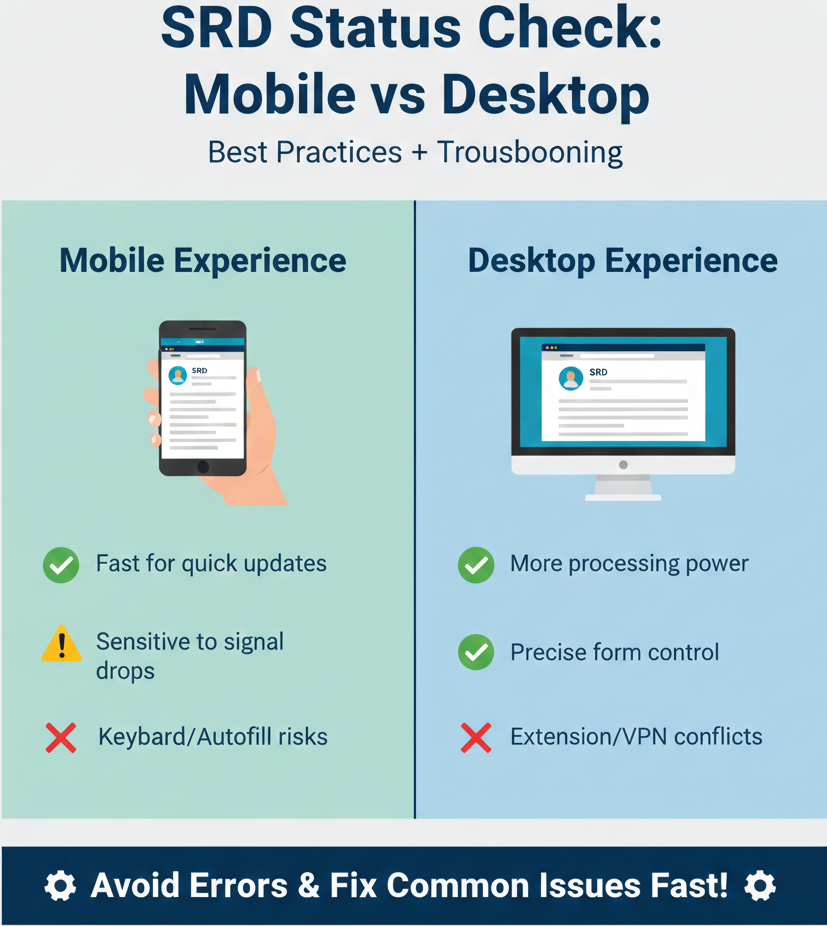
Mobile Experience
- Fast for quick updates
- Sensitive to signal drops
- Keyboard/Autofill risks
Desktop Experience
- More processing power
- Precise form control
- Extension/VPN conflicts
How do I check SRD status on mobile and desktop without errors?
-
1
Use the official SRD portal on an updated browser. Visit srd.sassa.gov.za and make sure your browser (Chrome, Safari, Edge, or Firefox) is updated to the latest version.
-
2
Enter your 13-digit ID and 10-digit phone number exactly as used on your SRD application. Do not add spaces, dashes, or change any digits. The phone number must match the one you registered with.
-
3
If it fails: try Incognito/Private mode, clear cache/cookies, and switch networks/devices. Most loading and submission problems are fixed by clearing your browser data or switching from mobile data to Wi-Fi.
-
4
If still stuck: use official SRD tools or contact SASSA. For phone changes, use the contact update page. For banking issues, use the banking update tool. For declines, use the appeals portal. If nothing works, contact SASSA directly.
Before You Start: Checklist
Have these ready before you check your status:
- ✅ SA ID number (13 digits) – Your South African ID number as shown on your ID document
- ✅ Phone number used on your SRD application (10 digits) – The exact number you registered with, no changes
- ✅ Updated browser (security + compatibility) – Chrome, Safari, Edge, or Firefox updated to the latest version
- ✅ Confirm official domain (avoid phishing) – Only use srd.sassa.gov.za or sassa.gov.za. Never click suspicious links or share your details on unofficial sites.
Jump to Section
Mobile vs Desktop: What’s the Same, What’s Different
Same on Both Devices
The SRD status check process is fundamentally the same whether you use a phone or computer. You visit the same official portal, enter the same two pieces of information (your 13-digit ID number and 10-digit phone number), and receive the same type of status result.
The information required never changes. You always need your South African ID number and the phone number you used when you applied for the SRD grant. The status outcomes you see—Approved, Pending, Declined, or verification messages—display the same way regardless of device.
Different in Practice
While the basics stay the same, the experience differs between mobile and desktop in ways that affect whether your check succeeds or fails.
On mobile phones, you face challenges that desktop users rarely encounter. Network instability is common when you switch between mobile data and Wi-Fi, or when your signal strength drops. Mobile browsers sometimes autofill information incorrectly, inserting spaces or wrong digits without you noticing. Some phones use app-like browsers (like Facebook’s in-app browser or Instagram’s browser) that do not always load government portals correctly. Keyboard issues—especially switching between number pads and full keyboards—can cause input errors.
On desktop computers, the problems tend to come from browser settings and software. Extensions like adblock, script blockers, or privacy tools can prevent the SRD portal from loading or submitting forms. VPNs and proxies sometimes block government sites or interfere with OTP/PIN delivery. Cached site data (old versions of the page stored on your computer) can cause the portal to load incorrectly or freeze. Having too many tabs open, especially if you are running other heavy applications, can slow down or crash your browser.
Understanding these differences helps you troubleshoot faster. If something fails on your phone, it might work on your laptop, and vice versa.
Mobile Best Practices (Fewer Errors, Faster Loads)
Following these best practices helps you avoid most mobile errors before they happen.
Use an Updated Browser
Your mobile browser needs to be updated for security and compatibility. Government portals like the SRD site use modern security standards that older browsers cannot support. An outdated browser might not load the page at all, or it might load incorrectly.
Chrome is the most reliable choice for Android phones. If you use Chrome, go to the Play Store, search for Chrome, and tap “Update” if available. After updating, restart Chrome before checking your status.
Safari is the default for iPhones. Safari updates automatically when you update iOS. Go to Settings > General > Software Update to check if your iPhone needs an update.
If your phone cannot update to the latest browser version (because it is too old), try switching to a different browser. Firefox and Edge are good alternatives.
Enter ID + Phone in the Correct Format
This sounds obvious, but incorrect formatting is one of the top reasons status checks fail.
Your ID number must be 13 digits with no spaces, dashes, or letters. If your ID card shows 8001015009086, enter exactly that. Do not type 80-0101-5009-086 or add any other characters.
Your phone number must be 10 digits starting with 0. If your number is 0821234567, enter it exactly like that. Do not add +27, spaces, or dashes. Do not use a different number than the one you applied with.
Mobile keyboards sometimes insert spaces automatically, especially after area codes. Always double-check what you typed before hitting submit.
Network Switching (Mobile Data ↔ Wi-Fi)
Network problems are more common on mobile than desktop. If the portal does not load or times out, your first move should be switching networks.
- If you are on mobile data, try switching to Wi-Fi. Government portals can be slow to load on weak mobile signals. Connect to a stable Wi-Fi network (home, work, or a trusted public network) and retry.
- If you are on Wi-Fi, try switching to mobile data. Sometimes Wi-Fi networks (especially public or workplace networks) block certain government sites or have firewall restrictions.
After switching, close the browser completely, reopen it, and go to the SRD portal again. Do not just refresh the page—fully restart the browser.
Try Incognito/Private Mode (Mobile)
Incognito mode (called Private Browsing on Safari) helps isolate browser problems. When you use incognito, the browser ignores saved cookies, cached pages, and autofill data. This eliminates many common loading and form submission errors.
- On Chrome (Android): Tap the three dots in the top right corner, select “New Incognito tab,” then go to srd.sassa.gov.za.
- On Safari (iPhone): Tap the tabs icon in the bottom right, tap “Private,” then tap the plus icon to open a new private tab. Go to srd.sassa.gov.za.
If your status check works in incognito but not in regular mode, your browser cache or cookies are causing the problem. Clear them (see below).
Clear Cache/Cookies (Mobile)
Clearing cache and cookies fixes most “page not loading” or “stuck refreshing” issues. Cache is temporary data your browser saves to load sites faster. Cookies are small files that remember your login and preferences. Sometimes these files get corrupted or outdated, causing the SRD portal to malfunction.
On Chrome (Android):
- Tap the three dots in the top right corner
- Go to Settings > Privacy and Security > Clear browsing data
- Select “Cached images and files” and “Cookies and site data”
- Tap “Clear data”
On Safari (iPhone):
- Go to Settings (on your phone, not in Safari)
- Scroll down and tap Safari
- Tap “Clear History and Website Data”
- Confirm by tapping “Clear History and Data”
After clearing, restart your browser and try the SRD portal again.
Date/Time Check (For PIN/OTP-Related Flows)
Some SRD processes send a PIN or OTP (One-Time Password) to your phone for verification. If your phone’s date and time are incorrect, the PIN system might not work properly.
Go to your phone’s settings and check your date and time. Use automatic date and time if your phone offers that option. This syncs your phone with network time, ensuring accuracy.
- On Android: Settings > System > Date & Time > Set time automatically (turn on)
- On iPhone: Settings > General > Date & Time > Set Automatically (turn on)
This is especially important if you recently traveled to a different time zone or manually changed your clock.
Desktop Best Practices (Avoid Blocks and Form Failures)
Desktop users face different challenges, mostly related to browser settings and software conflicts. These best practices help you avoid the most common desktop errors.
Use a Modern, Updated Browser
Just like on mobile, your desktop browser must be updated. Government portals require modern security standards. An outdated browser might not load the SRD portal at all, or it might display incorrectly.
Chrome is the most reliable choice for Windows, Mac, and Linux. Open Chrome, click the three dots in the top right corner, go to Help > About Google Chrome. If an update is available, Chrome will download and install it automatically. Click “Relaunch” to finish the update.
Edge is a good choice for Windows users. It updates automatically with Windows Update. Go to Settings > Windows Update to check for updates.
Firefox and Safari are also reliable options. Firefox updates automatically; check by going to Menu > Help > About Firefox. Safari updates with macOS updates; check by going to System Preferences > Software Update.
If your computer is too old to support updated browsers, consider using a different computer or switching to mobile.
Disable Extensions Temporarily (Especially Adblock/Script Blockers)
Browser extensions are one of the top reasons the SRD portal fails to load or submit on desktop. Extensions like adblock, script blockers, privacy tools, and VPNs can interfere with government sites.
Adblock and script blockers sometimes prevent the SRD portal from loading forms or submitting data. They see certain parts of the page as “ads” or “trackers” and block them, breaking the site.
The easiest fix is using Incognito/Private mode, which disables most extensions automatically.
- On Chrome: Press Ctrl+Shift+N (Windows/Linux) or Cmd+Shift+N (Mac)
- On Edge: Press Ctrl+Shift+N (Windows) or Cmd+Shift+N (Mac)
- On Firefox: Press Ctrl+Shift+P (Windows/Linux) or Cmd+Shift+P (Mac)
Go to srd.sassa.gov.za in the incognito window and try your status check. If it works, an extension was blocking it.
If you need to use regular mode, temporarily disable your extensions. In Chrome, click the three dots > Extensions > Manage Extensions, then toggle off each extension one by one until the portal works.
Clear Cache/Cookies (Desktop)
Cached data and cookies can cause the same problems on desktop as on mobile. If the portal loads incorrectly, shows old information, or the submit button does nothing, clearing cache and cookies usually fixes it.
On Chrome:
- Click the three dots in the top right corner
- Go to Settings > Privacy and Security > Clear browsing data
- Select “Cookies and other site data” and “Cached images and files”
- Click “Clear data”
On Edge:
- Click the three dots in the top right corner
- Go to Settings > Privacy, search, and services > Clear browsing data > Choose what to clear
- Select “Cookies and other site data” and “Cached images and files”
- Click “Clear now”
On Firefox:
- Click the three lines in the top right corner
- Go to Settings > Privacy & Security > Cookies and Site Data > Clear Data
- Select both options and click “Clear”
After clearing, restart your browser and try the SRD portal again.
Avoid VPN/Proxy for SRD Portal Checks
VPNs and proxies route your internet connection through other servers, which can cause problems with government sites. Some VPNs trigger security blocks on government portals. Others interfere with OTP/PIN delivery because the system cannot verify your location.
If you use a VPN or proxy, turn it off before checking your SRD status. Disconnect completely, not just switch servers. Then go to srd.sassa.gov.za and try again.
If your workplace or school uses a mandatory proxy, you might need to check your status from home or on your phone instead.
Troubleshooting on Mobile (Common Problems + Fix Steps)
Even if you follow best practices, problems can still happen. This section walks you through the most common mobile issues with step-by-step fixes.
Portal Won’t Load / Blank Screen
Symptoms: The SRD portal does not load at all, or you see a blank white screen.
Likely causes: Network issues, outdated browser, cached data blocking the page, or browser compatibility issues.
Fix steps: Switch networks (Wi-Fi ↔ Data), update your browser, clear cache/cookies, try incognito mode, or try a different browser.
When to switch to desktop: If you have tried all the steps above and the portal still does not load, try checking on a desktop computer instead.
When to escalate: If the portal does not load on any device or browser, the SASSA servers might be down. Wait a few hours and try again.
Submit Button Does Nothing / Keeps Refreshing
Symptoms: You enter your ID and phone number, click submit, but nothing happens. Or the page refreshes and asks you to enter your details again.
Likely causes: Cached form data, browser extensions blocking the submit action, or server-side issues.
Fix steps: Try incognito mode, clear site data, retry later (peak traffic), and check your input format (13-digit ID, 10-digit Phone).
OTP/PIN Not Received (When a Process Sends a PIN)
Symptoms: The portal says it sent a PIN to your phone, but you do not receive the SMS.
Likely causes: Incorrect phone number, poor network signal, SMS delays, or your SMS inbox is full.
Fix steps: Verify number matches application, check network signal, wait 5-10 minutes, clear SMS inbox, and retry the process.
“Wrong Details” (ID/Phone Mismatch)
Symptoms: The portal says your ID or phone number is incorrect, even though you are sure you entered them correctly.
Likely causes: You are using a different phone number than the one you applied with, your ID number has a typo, or your application details are not updated in the system.
Fix steps: Double-check ID (13 digits), confirm phone number matches application. If your phone number changed, use the official contact update page at srd.sassa.gov.za/sc19/contact. Try again after a few hours.
Frequent Crashes/Freezes
Symptoms: Your browser crashes or freezes when you try to load the SRD portal or submit your details.
Likely causes: Outdated browser, too many tabs open, low memory on your phone, or a corrupted cache.
Fix steps: Update browser, close other tabs/apps, restart phone, clear cache, or try a different browser.
When to Switch to Desktop
If you have tried all the mobile fixes above and still cannot check your status, it is time to switch to a desktop or laptop computer. Specifically, switch to desktop after you have tried incognito mode, clearing cache and cookies, updating your browser, and switching networks. Desktop computers have more processing power, more reliable internet connections, and fewer browser compatibility issues. Many problems that cannot be solved on mobile work immediately on desktop.
Troubleshooting on Desktop (Common Problems + Fix Steps)
Desktop users face different issues than mobile users. This section covers the most common desktop problems and how to fix them.
Portal Won’t Load or Is Partially Broken
Symptoms: The SRD portal does not load at all, loads incorrectly (missing buttons or fields), or displays error messages.
Fix steps: Disable extensions (use incognito), clear cache/cookies, update your browser, try another browser, and disable VPN/proxy.
Submit Fails / “Something Went Wrong”
Symptoms: You enter your details and click submit, but you see an error message like “Something went wrong” or the page refreshes without showing your status.
Fix steps: Try incognito mode, clear site data, check input format, and retry later during lower traffic periods.
OTP/PIN Issues
Symptoms: The portal says it sent a PIN to your phone, but you do not receive it.
Fix steps: Verify phone number, check network signal, wait 5-10 minutes. Switch to mobile if desktop browsers have timing issues with OTP flows.
VPN/Proxy Causes Repeated Failures
Symptoms: The portal loads slowly, times out, or shows security errors when you have a VPN or proxy active.
Fix steps: Turn off your VPN or proxy completely. Disconnect entirely, then retry the status check.
When to Switch to Mobile
If you have tried all the desktop fixes above and still cannot check your status, it is time to switch to mobile. Specifically, switch to mobile after you have tried incognito mode, disabling extensions, clearing cache and cookies, and trying a different browser. Mobile browsers are simpler and have fewer conflicts. Many desktop problems (like extension conflicts or VPN issues) do not exist on mobile.
“Fix It Fast” Decision Tree
Use this decision tree to quickly diagnose and fix your problem:
Step 1: Do you have the same phone number used on your SRD application?
Yes → Proceed to Step 2
No → Go to the official contact update page (srd.sassa.gov.za/sc19/contact). You will need your 13-digit ID and your 6-digit Application ID. Update your phone number, wait a few hours, then try the status check again.
Step 2: Does the portal load?
Yes → Proceed to Step 3
No → Clear cache and cookies, try incognito mode, update your browser, and switch networks. If still not loading, try a different device (mobile if you are on desktop, desktop if you are on mobile).
Step 3: Can you submit your details?
Yes → Proceed to Step 4
No → Try incognito mode. If that does not work, clear site data and retry later. If still failing after 24 hours, contact SASSA.
Step 4: What is your status result?
Approved → Check your banking details to confirm payment. If your payment is late or missing, see Troubleshooting Approved But No Payment.
Pending → Check again weekly. If pending for more than 4 weeks, contact SASSA.
Declined → Review the reason shown in your result. If you believe it is wrong, use the official appeals portal (srd.sassa.gov.za/appeals). If the decline is correct, you do not need to take further action.
Identity Verification Failed → Visit a SASSA office for biometric verification. Update your details if needed.
Step 5: Still stuck?
- Banking issue? → Use the official banking update tool (srd.sassa.gov.za/sc19/contact).
- Declined and want to appeal? → Use the official appeals portal.
- Nothing works? → Contact SASSA directly using the official contact channels below.
Security and Privacy (Don’t Get Tricked)
Scammers target SRD beneficiaries by creating fake status check sites and asking for personal information. Protect yourself by following these security rules.
Safe Device Checklist
Use an updated browser. Updated browsers include security fixes that protect you from phishing sites and malware. Always update your browser to the latest version.
Verify the domain in your browser address bar. Only use official SASSA domains: srd.sassa.gov.za and sassa.gov.za. If you see a different domain (like “sassacheck.com” or “srd-status.co.za”), it is not official. Close it immediately.
Note: Incognito mode does not make you anonymous online. Incognito mode stops your browser from saving cookies and history on your device, but it does not hide your activity from your internet provider, your employer, or the websites you visit. Use it to avoid cache conflicts, not for privacy from SASSA.
What Not to Share
Never share your OTP or PIN with anyone. Official SASSA processes send OTPs and PINs to your phone for verification. You enter these codes on the official portal yourself. SASSA staff will never call or message you asking for your PIN. Anyone asking for your PIN is a scammer.
Never share your banking details on unofficial sites. Only update your banking details on the official SASSA portal (srd.sassa.gov.za/sc19/contact). Do not share your bank account number, card details, or PIN with anyone claiming to be from SASSA via SMS, WhatsApp, or phone call.
Do not click suspicious links. If you receive an SMS or WhatsApp message with a link claiming to be from SASSA, do not click it. Go directly to srd.sassa.gov.za yourself by typing it into your browser.
Escalation Path (When to Contact SASSA)
Before contacting SASSA, try the official self-service tools first. These tools solve most problems without needing to call or email.
Use Official Tools First (If Applicable)
- Contact details update (phone/email): If your phone number or email changed, use srd.sassa.gov.za/sc19/contact. You will need your 13-digit ID and your 6-digit Application ID.
- Banking details update: If you need to change your bank account, use the contact page prompts to update your banking information securely.
- Appeals portal: If your application was declined and you believe it was wrong, use srd.sassa.gov.za/appeals.
- Cancellation portal: Use the official portal to cancel if your circumstances changed and you no longer need the grant.
Official Contact Channels
If the self-service tools do not solve your problem, contact SASSA directly using these official channels:
- Email: grantenquiries@sassa.gov.za – Use this for written inquiries and follow-ups. Clearly describe your problem, include your ID number, and attach screenshots if relevant.
- Call center: 0800 60 10 11 – This is SASSA’s toll-free helpline. Call during office hours (Monday to Friday, 8 AM to 4 PM). Wait times can be long during payment weeks.
- Official SASSA website: www.sassa.gov.za – Check the contact page for additional regional office numbers and addresses.
- Government COVID resource: The official government COVID-19 response page (gov.za) also references these same contact points for SRD assistance.
FAQs (Voice-Search Ready)
What do I need to check SRD status on mobile?
You need your 13-digit South African ID number and the 10-digit phone number you used when you applied for the SRD grant. Make sure your mobile browser is updated.
What do I need to check SRD status on desktop?
You need your 13-digit South African ID number and the 10-digit phone number you used when you applied for the SRD grant. Make sure your desktop browser is updated and disable adblock extensions if needed.
Why does the SRD site not load on my phone?
The most common reasons are network issues, outdated browser, or cached data. Switch from mobile data to Wi-Fi (or vice versa), update your browser, clear cache and cookies, and try incognito mode.
Why does the SRD site not load on my laptop?
Desktop loading issues are usually caused by browser extensions (especially adblock), outdated browser, or cached data. Disable extensions (or use incognito mode), update your browser, and clear cache and cookies.
Should I use Incognito mode for SRD checks?
Yes, incognito mode is helpful for troubleshooting. It disables most browser extensions and ignores cached data, which fixes many loading and submission issues. However, incognito does not make you anonymous online—it just limits what is saved on your device.
How do I clear cache/cookies to fix SRD loading?
On mobile: Go to your browser settings > Privacy > Clear browsing data. Select “Cached images and files” and “Cookies and site data,” then clear. On desktop: Go to your browser settings > Privacy and Security > Clear browsing data. Select the same options and clear.
What if my phone number changed?
Use the official contact update page at srd.sassa.gov.za/sc19/contact. You will need your 13-digit ID and your 6-digit Application ID. Update your phone number, wait a few hours, then try the status check again.
What if I can’t receive the PIN?
First, confirm your phone number is correct and matches your application. Check your network signal and wait 5-10 minutes for SMS delivery. If the PIN still does not arrive, retry the process. If it fails repeatedly, contact SASSA at 0800 60 10 11.
How do I update banking details?
Use the official banking update tool at srd.sassa.gov.za/sc19/contact. Follow the prompts to update your bank account information securely. Do not share your banking details via SMS, WhatsApp, or phone call.
When should I contact SASSA directly?
Contact SASSA after you have tried all troubleshooting steps (incognito mode, clearing cache, switching devices) and used the relevant self-service tools (contact update, banking update, appeals). If your issue is still unresolved after 24-48 hours, call 0800 60 10 11 or email grantenquiries@sassa.gov.za.
Final Thoughts
Checking your SRD status should be simple, but device settings and network quirks often get in the way. By following the best practices for your specific device—whether it’s clearing mobile cache or disabling desktop extensions—you can bypass 90% of the errors beneficiaries face. Remember to stick to official channels and protect your information from scammers.
Stay persistent and stay safe.